It's incredibly frustrating: you set your volume to the perfect level, and moments later, it's creeping back up again, seemingly on its own. This isn't some poltergeist activity, but rather a common tech issue affecting smartphones, tablets, and computers alike. Understanding the root cause is the first step to resolving this irksome problem.
The culprit behind this unwanted volume increase can range from simple software glitches to hardware malfunctions. Bluetooth connectivity issues, errant app settings, and even physical obstructions around your device's volume buttons can all contribute. This guide provides a systematic approach to diagnosing and fixing the issue, ensuring your volume stays where you want it.
We'll cover troubleshooting steps for various devices, including iPhones, Android phones, and computers. By following these steps, you'll be able to regain control over your audio and enjoy a more pleasant listening experience. Get ready to reclaim your auditory serenity!
Step 1: Restart Your Device
A simple restart can often resolve minor software glitches that may be causing the volume to fluctuate unexpectedly. Think of it as a digital reset, clearing out temporary files and processes that could be interfering with normal functionality. Power down your device completely, wait a few seconds, and then power it back on. This is a quick and easy first step that often works wonders.
Step 2: Check for Bluetooth Interference
Bluetooth devices, like wireless headphones or speakers, can sometimes inadvertently control your device's volume. If you have Bluetooth enabled, your device might be automatically connecting to a previously paired device and receiving volume commands from it. To test this, disable Bluetooth in your device's settings. Monitor your volume levels after disabling Bluetooth to see if the issue persists.
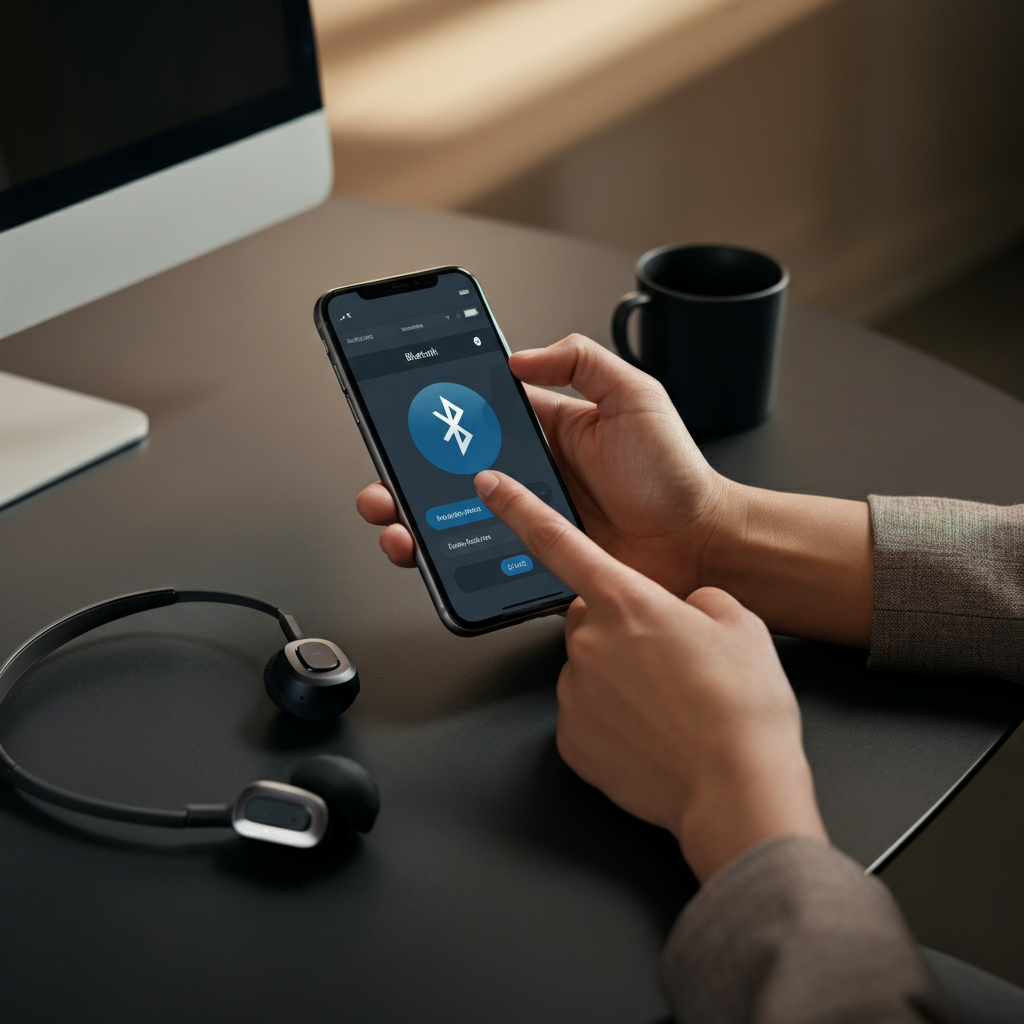
Step 3: Clean Your Volume Buttons
Dirt, dust, and debris can accumulate around the volume buttons, causing them to stick or register phantom presses. Carefully inspect the area around your volume buttons for any visible obstructions. Use a soft brush or a can of compressed air to gently clean the buttons. Avoid using liquids or sharp objects that could damage the device.

Step 4: Remove Your Device Case
A poorly fitting or bulky case can sometimes press against the volume buttons, causing them to register unintended presses. Remove your device's case and observe if the volume continues to increase on its own. If the problem disappears after removing the case, consider switching to a different case or using your device without a case altogether.

Step 5: Update Your Operating System
Outdated software can contain bugs that cause unexpected behavior, including volume control issues. Ensure that your device is running the latest version of its operating system. Check for updates in your device's settings and install any available updates. Software updates often include bug fixes and performance improvements that can resolve a wide range of problems.
Step 6: Check for App-Specific Volume Settings
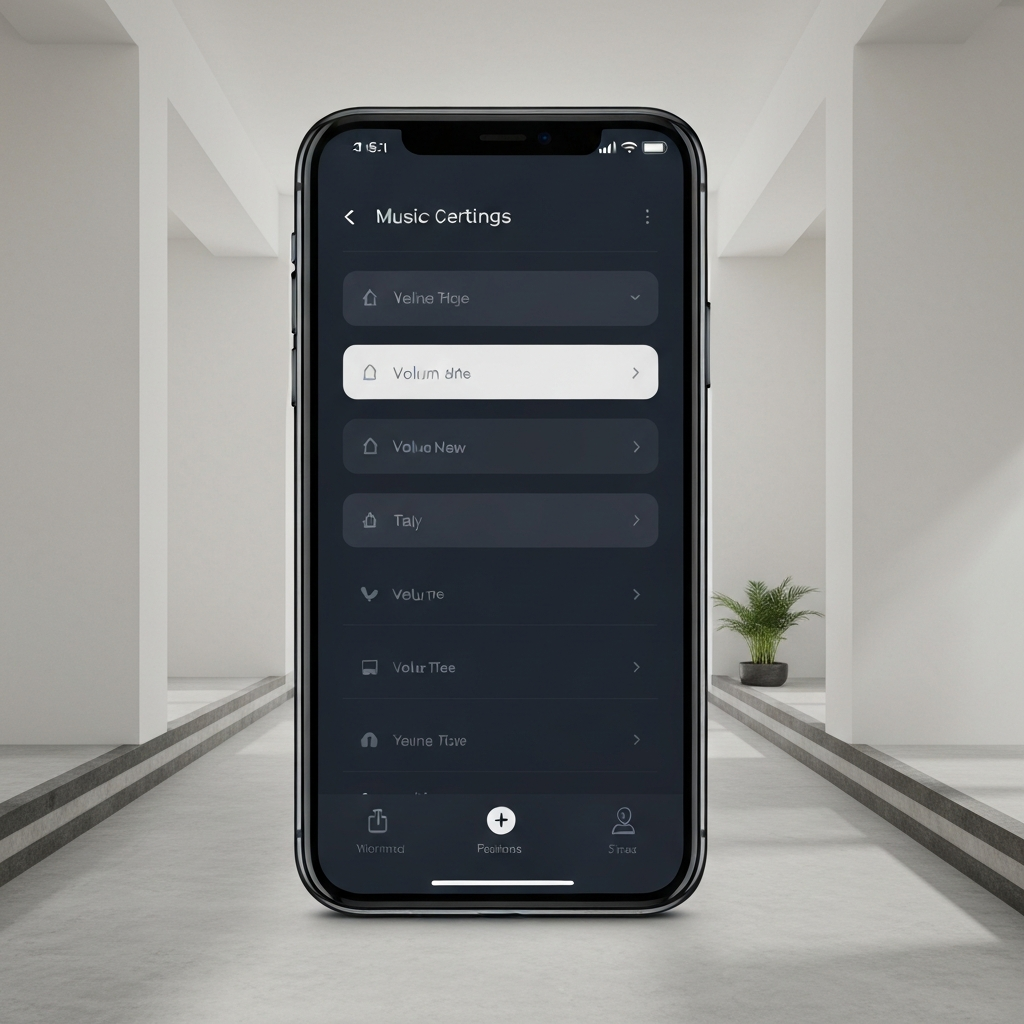
Some apps have their own volume settings that can override your device's system-wide volume controls. Explore the settings of any apps that frequently use audio, such as music players or video streaming apps. Look for volume controls within the app and make sure they are not set to automatically increase the volume.
Step 7: Run the Windows Audio Troubleshooter (For Computers)
Windows has a built-in audio troubleshooter that can automatically detect and fix common sound problems. To access the troubleshooter, right-click on the speaker icon in the system tray and select "Troubleshoot sound problems." Follow the on-screen instructions to run the troubleshooter and apply any recommended fixes.

Step 8: Update Your Audio Drivers (For Computers)
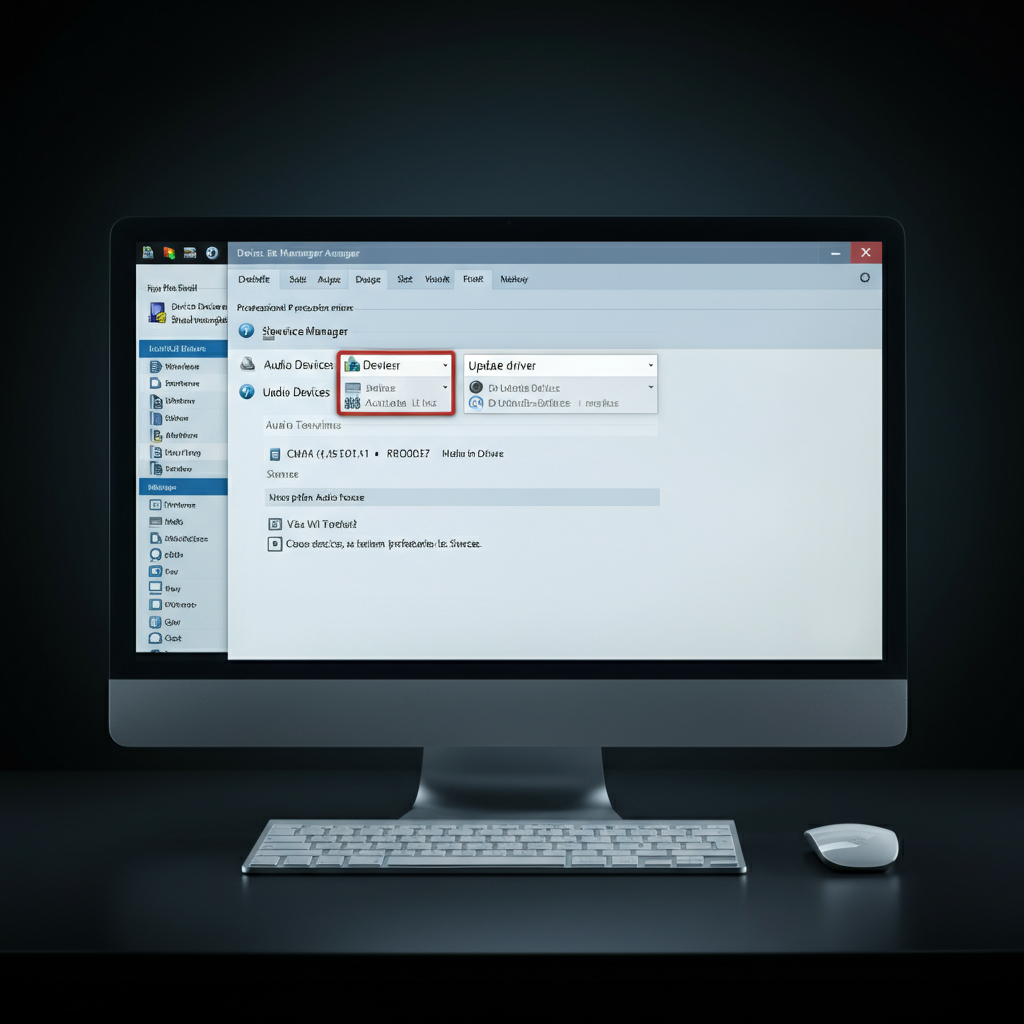
Outdated or corrupted audio drivers can cause a variety of sound-related issues, including volume control problems. Update your audio drivers through the Device Manager. You can access Device Manager by searching for it in the Windows search bar. Locate your audio device, right-click on it, and select "Update driver." Choose the option to search automatically for updated drivers.
Common Mistakes to Avoid
- Using excessive force when cleaning volume buttons: This can damage the buttons or internal components.
- Ignoring software updates: Regularly updating your operating system is crucial for maintaining device stability.
- Assuming it's a hardware issue without trying software solutions first: Many volume problems are caused by software glitches.
FAQ Section
Q: Why does my volume only go up when I'm using a specific app?
A: The app likely has its own volume settings that are overriding your device's system volume. Check the app's settings for volume controls.
Q: Can a virus cause my volume to go up by itself?
A: It's unlikely, but not impossible. Run a scan with a reputable antivirus program to rule out malware.
Q: I've tried everything, and my volume is still going up. What should I do?
A: You may have a hardware issue. Contact the device manufacturer or a qualified repair technician for assistance.
Conclusion
Dealing with a volume that insists on increasing itself can be a real headache. By systematically working through the steps outlined in this guide, you'll be well-equipped to identify the underlying cause and implement a solution. Remember to start with the simplest fixes, like restarting your device and cleaning the volume buttons, before moving on to more advanced troubleshooting steps. With a little patience and persistence, you can regain control over your audio and enjoy a more peaceful listening experience.