Keeping your Garmin Nuvi updated is essential for accurate navigation and access to the latest road information. Outdated maps can lead to frustrating detours, missed exits, and inaccurate points of interest. This comprehensive guide will walk you through the process of updating your Garmin Nuvi using Garmin Express, the official software, as well as exploring alternative map sources.
Whether you're a seasoned traveler or just rely on your Nuvi for daily commutes, ensuring your device has the most current data is crucial. We'll cover everything from downloading and installing the necessary software to troubleshooting common issues you might encounter along the way. Follow these steps carefully to keep your Garmin Nuvi running smoothly and reliably.
This guide offers two primary methods: the recommended Garmin Express method, and a more advanced option for using maps from community sources. While the latter offers flexibility, it requires a higher level of technical skill and may not be officially supported by Garmin.
Step 1: Download and Install Garmin Express
Downloading Garmin Express
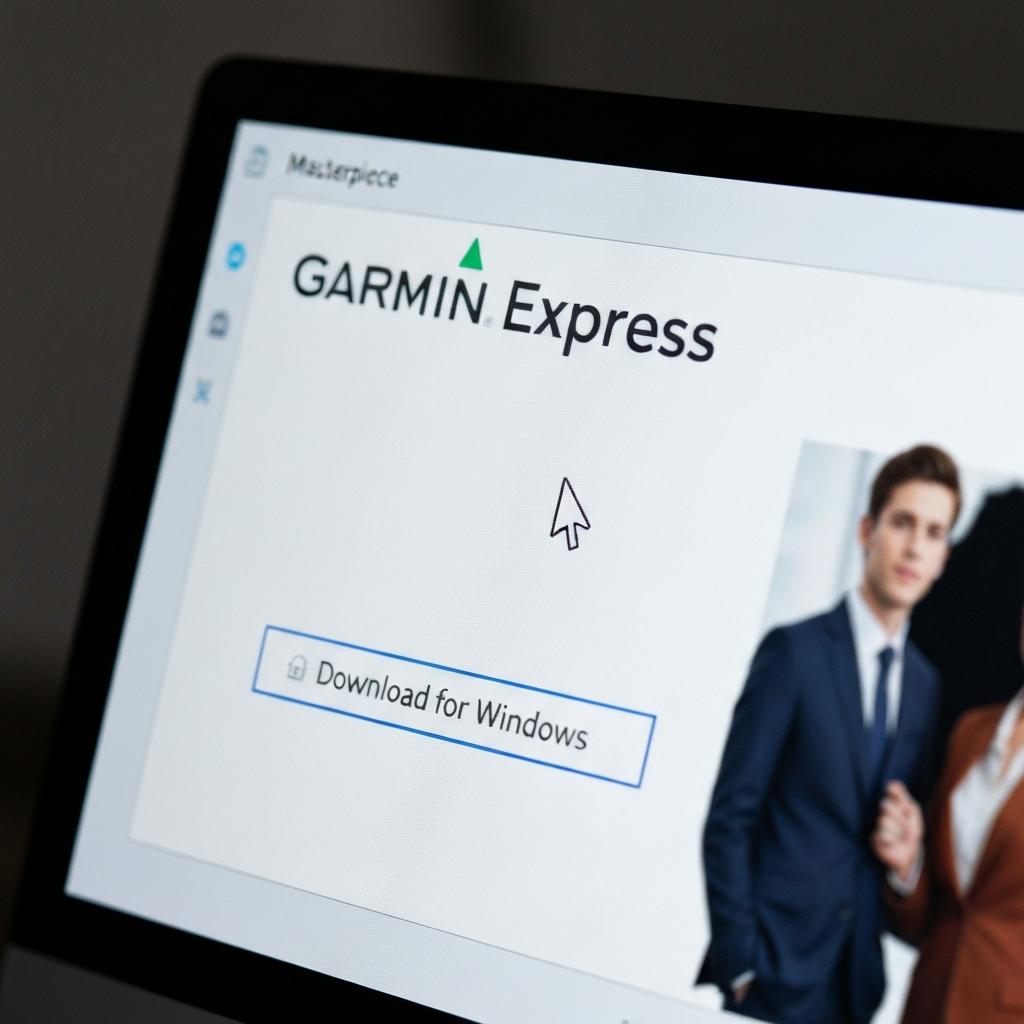
The first step is to download Garmin Express from the official Garmin website. Always download directly from Garmin to ensure you're getting a safe and legitimate version of the software. Navigate to Garmin's website using your computer's web browser and locate the Garmin Express download page. Choose the version appropriate for your operating system (Windows or macOS) and initiate the download. Be patient, as the download size can vary depending on your internet connection.
Step 2: Install Garmin Express
Installing the Software
Once the download is complete, locate the downloaded file on your computer and double-click it to begin the installation process. Follow the on-screen prompts carefully. You'll likely be asked to accept a license agreement and choose an installation location. Pay close attention to these prompts and ensure you understand the terms of the agreement before proceeding. On macOS, you might need to drag the Garmin Express icon to the Applications folder. After installation, launch the Garmin Express application.

Step 3: Connect Your Garmin Nuvi to Your Computer
Connecting the Device
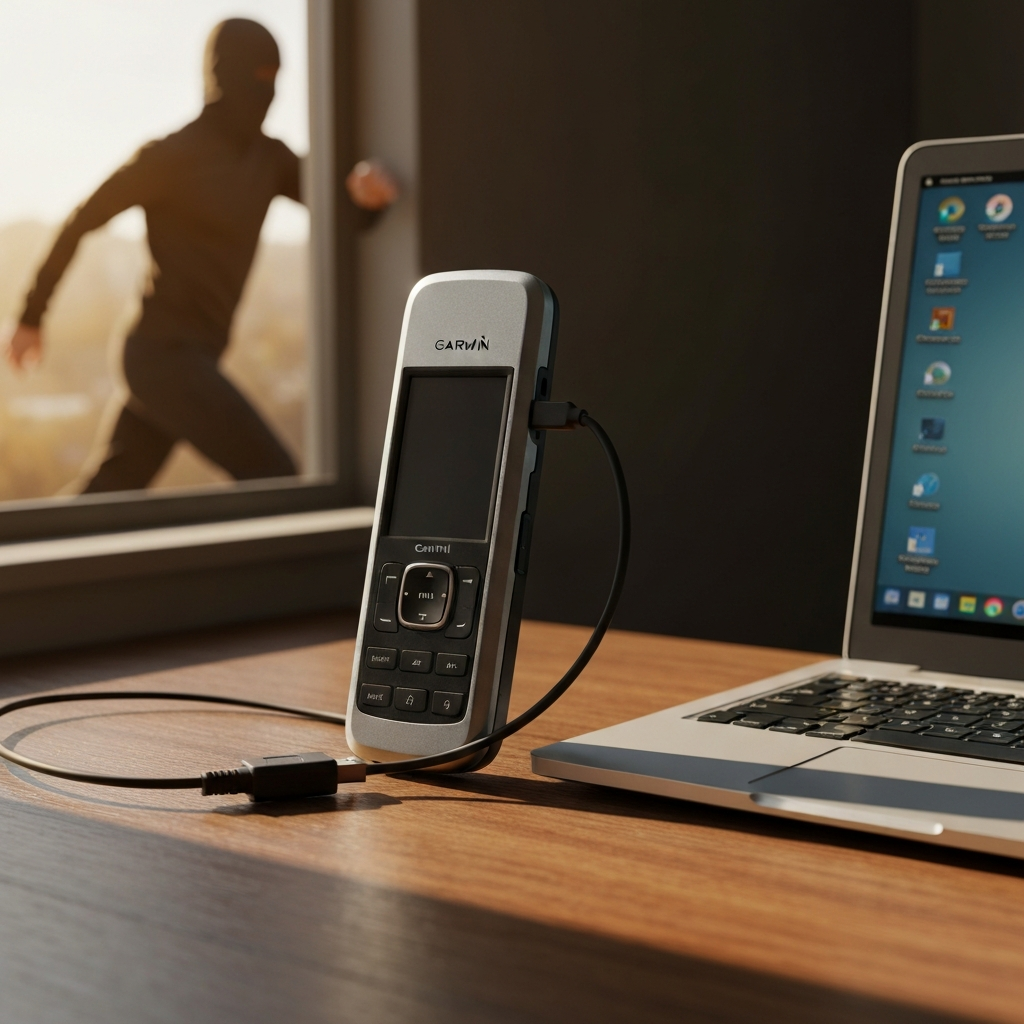
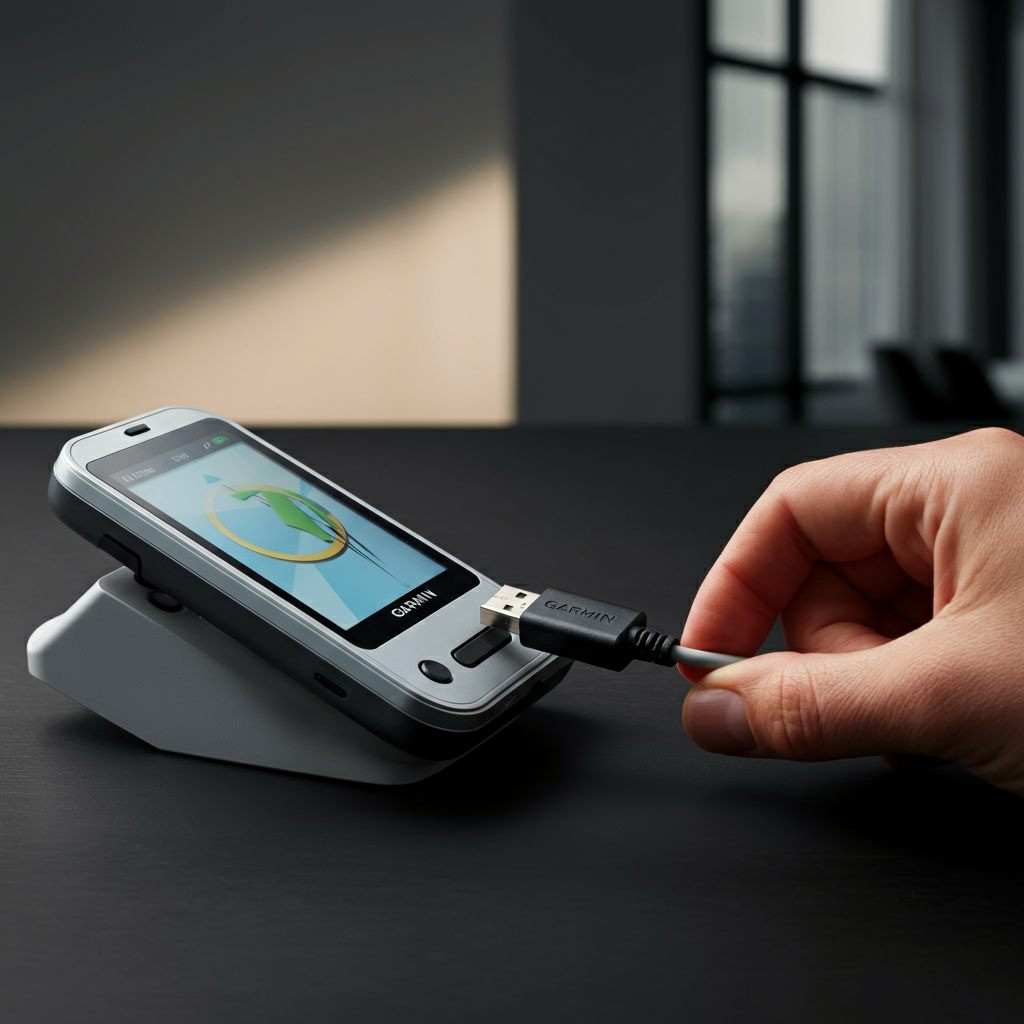
Now, it's time to connect your Garmin Nuvi to your computer using a USB cable. Ensure that the cable is securely connected to both the Nuvi and your computer. Some older devices may require a specific type of USB cable, so refer to your Nuvi's manual if you're unsure. If you're using a USB hub, try connecting the Nuvi directly to a USB port on your computer, as hubs can sometimes cause connectivity issues. Turn on your Garmin Nuvi after connecting it. Your computer should recognize the device automatically.
Step 4: Add Your Device to Garmin Express
Adding the Nuvi to the Software
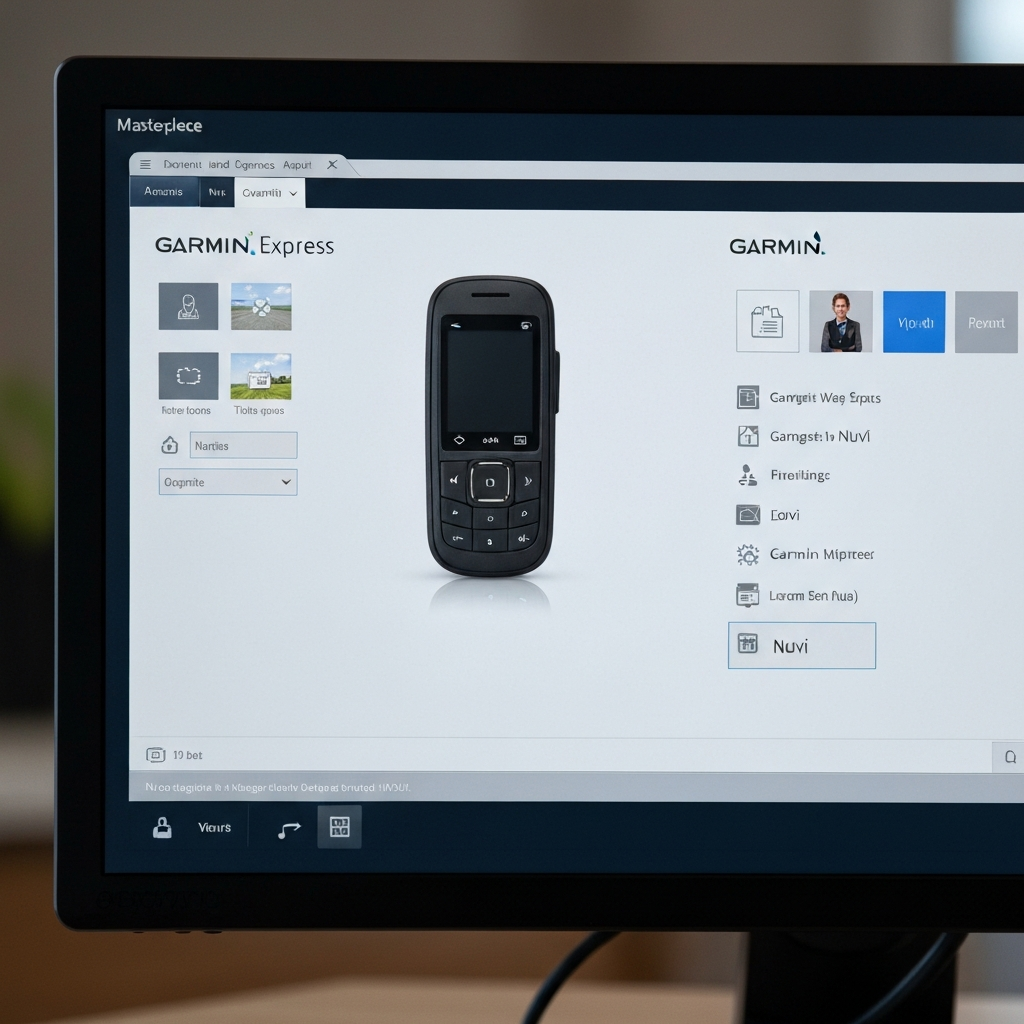
With Garmin Express open and your Nuvi connected, the software should automatically detect your device. If it doesn't, click the "Add Device" button in Garmin Express. Follow the on-screen instructions to add your Nuvi to the software. This process may involve registering your device with Garmin if you haven't already done so. Make sure you have your Garmin account credentials ready if you need to register your device. Once added, your Nuvi will appear in the Garmin Express window.
Step 5: Check for and Install Updates
Installing the Updates
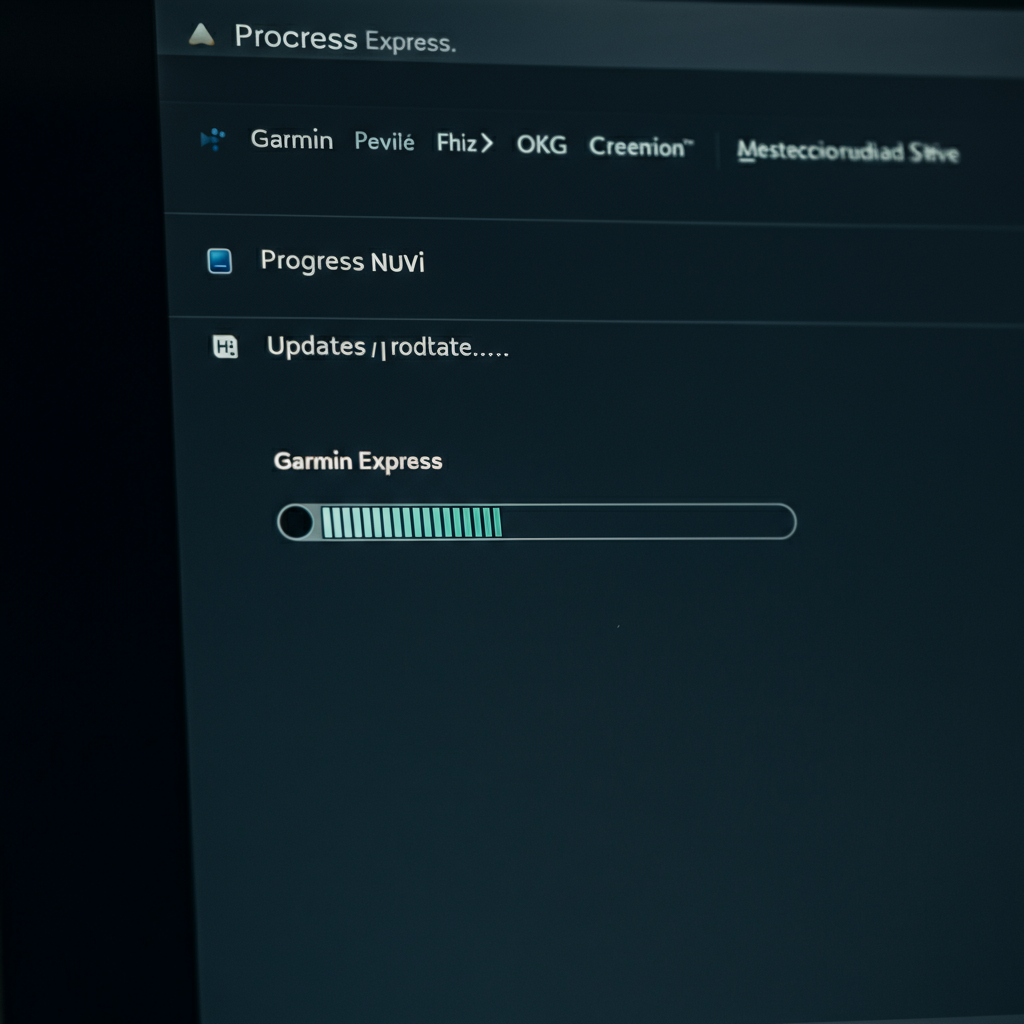
After your Nuvi is added to Garmin Express, the software will check for available updates. These updates may include map updates, software updates, and other improvements. If updates are available, click the "Install All" button (or similar option) to begin the update process. The update process can take a considerable amount of time, depending on the size of the updates and your internet speed. Ensure your computer remains connected to the internet and your Nuvi remains connected to your computer throughout the entire process. Avoid interrupting the update, as this could potentially cause issues with your device.
Step 6: Verify the Update and Disconnect
Ensuring Successful Installation
Once the update process is complete, Garmin Express will display a confirmation message. It's a good practice to verify that the update was successful by checking the map version on your Nuvi. Navigate to the map settings on your device and compare the version number with the latest version listed on the Garmin website (if available). Once you've confirmed the update, safely disconnect your Nuvi from your computer. Always use the "safely remove hardware" option in Windows or the "eject" option on macOS before disconnecting to prevent data corruption.
Step 7: Using Maps from Alternative Sources
Downloading OpenStreetMap Data
For more advanced users, you can explore using maps from alternative sources like OpenStreetMap (OSM). OSM is a community-driven mapping project that provides free and open-source map data. To use OSM maps, you'll need to download a map image file (.img) from a reputable OSM source. Exercise caution when downloading maps from unofficial sources, as they may not be accurate or safe. The process involves navigating to the OSM website, selecting a region, and downloading the corresponding map file. Remember to rename the file to `gmapsupp.img` (if it has a different name) for compatibility with your Garmin Nuvi.

Step 8: Transferring OSM Maps to Your Nuvi
Copying the Map File
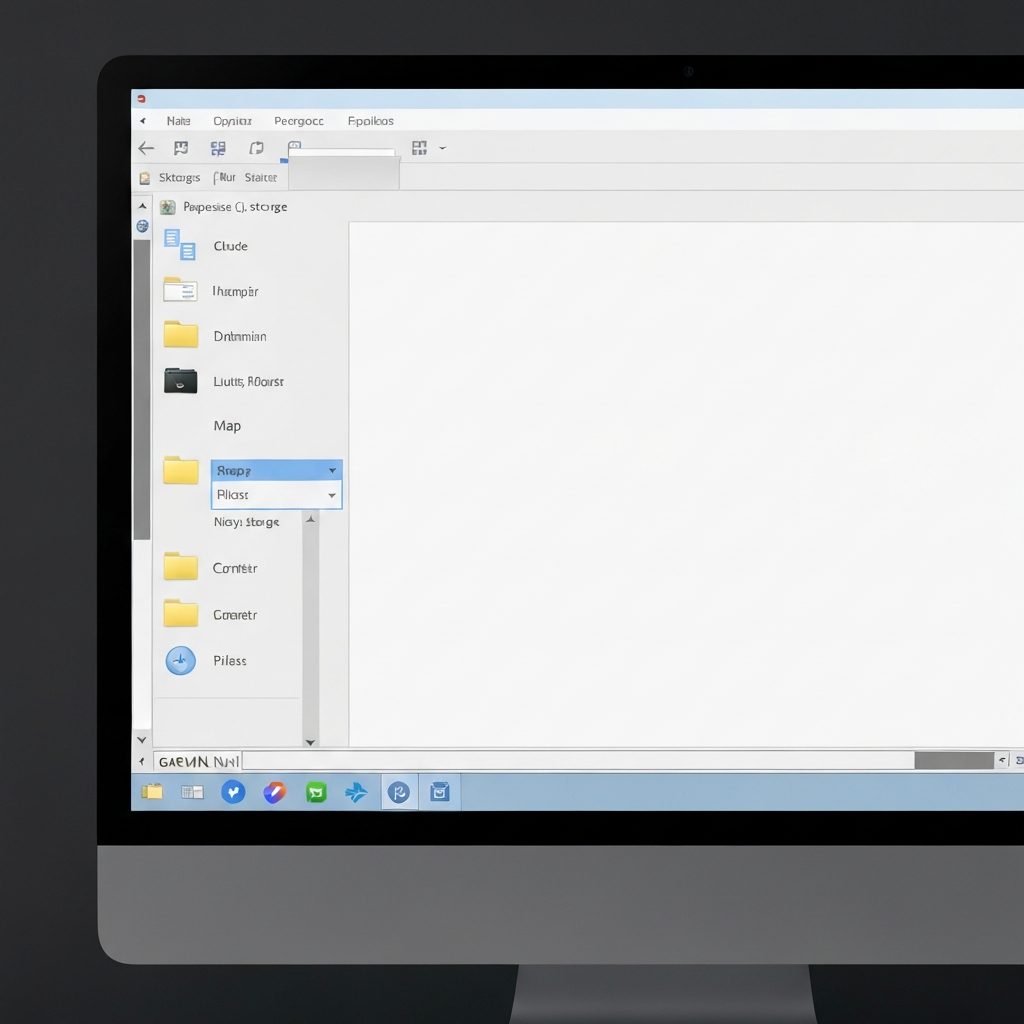
After downloading the OSM map file, connect your Garmin Nuvi to your computer in USB Mass Storage mode (if your device requires manual configuration for this). Locate the "Garmin" or "Map" folder on your Nuvi's storage. If you can't find an existing folder, create a new one named "Map". Copy the `gmapsupp.img` file into this folder. The transfer process can take some time, depending on the size of the map file. Ensure the transfer is complete before disconnecting your Nuvi.
Step 9: Activating the New Map
Selecting the Map on Your Nuvi
Once the map file is transferred, disconnect your Nuvi and power it on. Navigate to the map settings menu (usually under "Tools," then "Settings," then "Map," then "Map Info"). Here, you should see a list of installed maps. Uncheck the box next to your old map (the default Garmin map) and check the box next to the new OSM map. Be aware that using custom maps might affect certain features or functionality of your Nuvi. Test the new map to ensure it's working correctly.
Tools or Materials Required
- Computer (Windows or macOS)
- Garmin Nuvi GPS device
- USB cable (compatible with your Garmin Nuvi)
- Internet connection
Common Mistakes to Avoid
- Downloading Garmin Express from unofficial sources.
- Interrupting the update process.
- Using incompatible USB cables.
- Not safely ejecting the device from your computer.
- Using unreliable OSM map sources.
FAQ Section
- Q: How long does it take to update a Garmin Nuvi?
- A: The update process can take anywhere from 30 minutes to several hours, depending on the size of the updates and your internet speed.
- Q: Can I use my Garmin Nuvi while it's updating?
- A: No, you cannot use your Garmin Nuvi while it's connected to your computer and updating.
- Q: What if Garmin Express doesn't recognize my device?
- A: Try using a different USB cable, connecting directly to a USB port on your computer, or restarting both your computer and your Garmin Nuvi.
- Q: Are OpenStreetMap maps as accurate as Garmin's official maps?
- A: The accuracy of OSM maps can vary depending on the region and the contributions of local mappers. They may be less accurate in some areas but more accurate in others.
Safety Considerations
- Ensure your computer is protected from malware before downloading software.
- Back up your Garmin Nuvi data before performing any major updates.
- Do not use your Garmin Nuvi while driving.
Pro Tips
- Regularly check for updates to ensure you have the latest map data.
- Consider purchasing a larger SD card if your Nuvi's internal storage is limited.
- Explore the advanced features of Garmin Express, such as backing up and restoring your device data.
- Always refer to your Garmin Nuvi's manual for specific instructions and troubleshooting tips.
Conclusion
Updating your Garmin Nuvi is a vital task for maintaining accurate navigation and ensuring a smooth travel experience. By following the steps outlined in this guide, you can easily update your device using Garmin Express or explore alternative map sources like OpenStreetMap. Remember to prioritize safety, accuracy, and reliability when choosing your update method. With the latest map data, your Garmin Nuvi will continue to be a valuable companion on all your journeys.