Working in dimly lit environments can be challenging, especially when you need to use your Lenovo laptop. Fortunately, many Lenovo laptops come equipped with a keyboard backlight, allowing you to see the keys clearly even in the dark. This guide will walk you through the steps to activate the keyboard light on your Lenovo device, whether it's a newer model with a backlight or an older ThinkPad with the iconic ThinkLight.
Activating the keyboard light isn't just about convenience; it can also reduce eye strain and improve typing accuracy in low-light conditions. Understanding how to control this feature is essential for any Lenovo laptop user. This article covers everything from identifying the correct keys to troubleshooting common issues, ensuring you can always type comfortably, no matter the ambient lighting.
This guide caters to both newer Lenovo models featuring keyboard backlights and older ThinkPad models equipped with the ThinkLight feature, providing comprehensive instructions and troubleshooting tips applicable to a wide range of devices. By following these steps, you'll be able to effortlessly illuminate your keyboard and enhance your productivity.
Step 1: Identify Your Keyboard Lighting Type
Before attempting to turn on the keyboard light, determine whether your Lenovo laptop features a keyboard backlight (common in newer models) or the ThinkLight (typically found in older ThinkPad series). Look for a backlight icon on the spacebar – it resembles a horizontal bracket with radiating lines. If your laptop lacks this icon, check for the ThinkLight, a small LED located at the top of the display bezel.
Step 2: Enabling the Keyboard Backlight
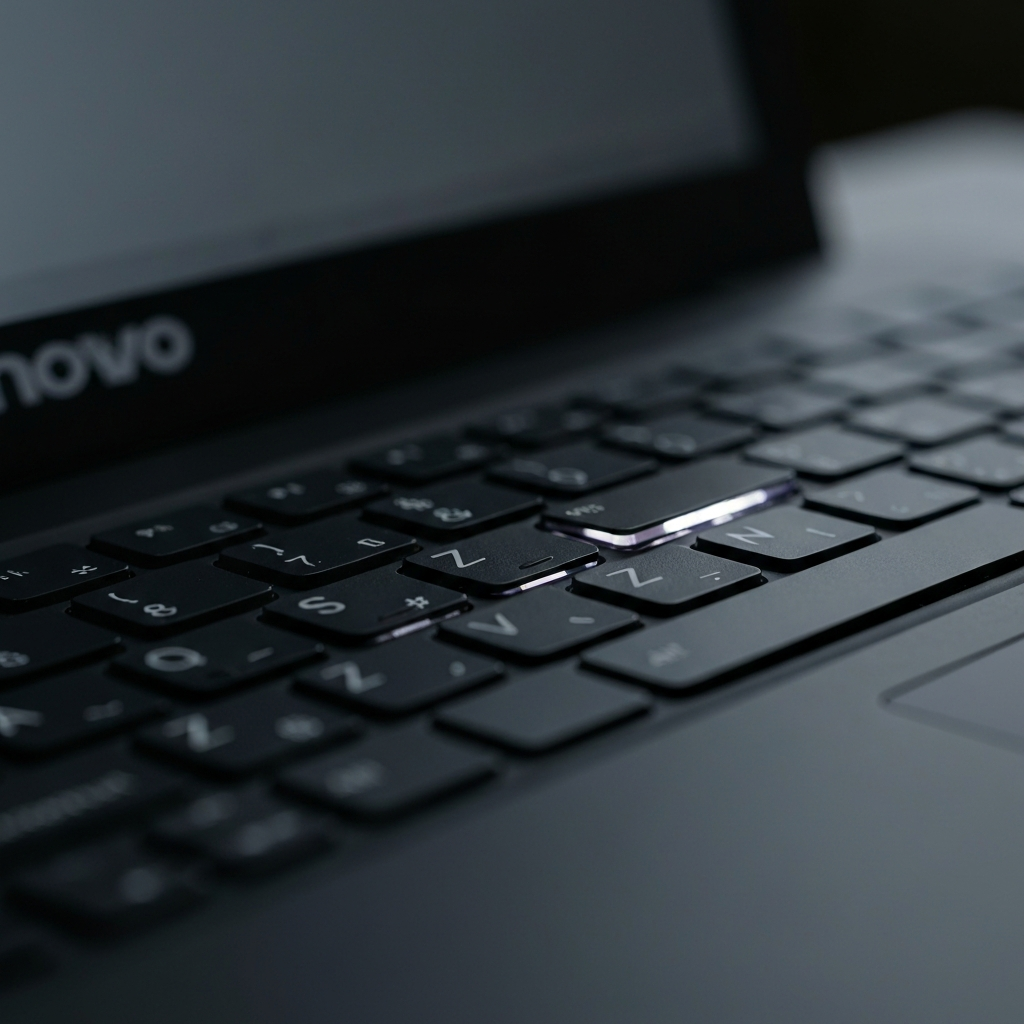
If your Lenovo laptop has a keyboard backlight, the activation process is straightforward. Locate the "Fn" (Function) key, usually found in the lower-left corner of your keyboard. Simultaneously press and hold the "Fn" key and the spacebar (the key with the backlight icon). Repeat this combination to cycle through different brightness levels or to turn the backlight off entirely. Some models may have dedicated keys instead of the spacebar for backlight control.

Step 3: Activating the ThinkLight
For older ThinkPad models with the ThinkLight, the activation method is slightly different. Locate the "Fn" (Function) key and the "Page Up" key (often labeled "PgUp"). Simultaneously press and hold both keys. The ThinkLight, located at the top of the screen, should illuminate, casting a downward glow on the keyboard. To deactivate the ThinkLight, repeat the process: press and hold "Fn" and "Page Up" together again.
Step 4: Troubleshooting Common Backlight Issues
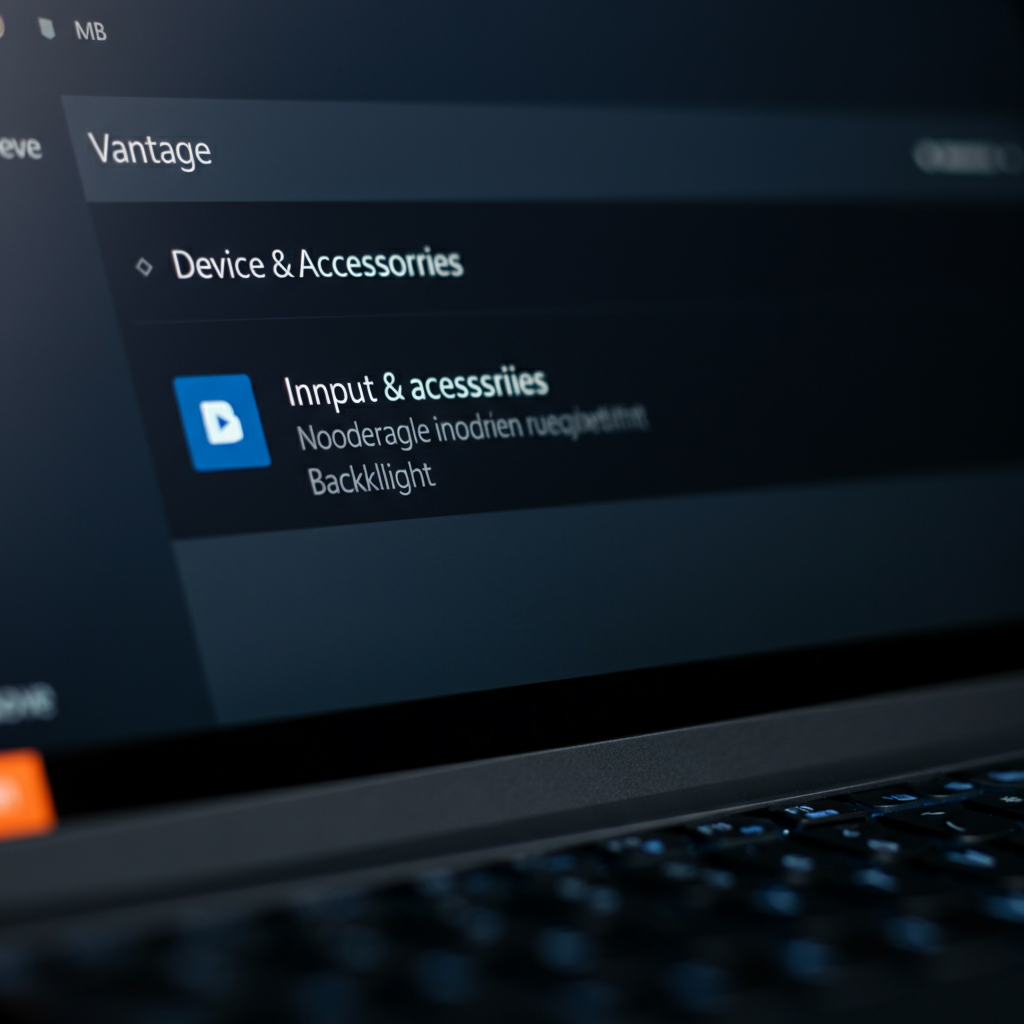
If the keyboard backlight isn't working, there are several troubleshooting steps you can take. First, ensure that your laptop's battery isn't critically low, as some models disable the backlight to conserve power. Next, check the Lenovo Vantage application (pre-installed on many Lenovo laptops). Open Lenovo Vantage, navigate to "Device," then "Input & Accessories," and confirm that the "Keyboard backlight" option is enabled. Also, consider performing a power drain by unplugging the AC adapter, removing the battery (if detachable), holding the power button for 10 seconds, and then reconnecting everything.
FAQ Section
Q: My Lenovo laptop doesn't have a backlight icon on the spacebar. Does that mean it doesn't have a backlight?
A: Not necessarily. Some Lenovo models may use a different key or key combination to control the backlight. Refer to your laptop's user manual or the Lenovo support website for specific instructions for your model.
Q: Can I adjust the color of the keyboard backlight?
A: Generally, no. Most Lenovo laptops with keyboard backlights offer only brightness adjustments, not color customization. High-end gaming laptops might be an exception, offering more advanced RGB lighting options configurable through dedicated software.
Q: The ThinkLight on my older ThinkPad is very dim. Can I replace it?
A: While it's possible to replace the ThinkLight, it's generally not recommended for users unfamiliar with electronics repair. Consider consulting a qualified technician to avoid damaging your laptop. A dim ThinkLight could also indicate a low battery or a problem with the laptop's power management.
Pro Tips
- Keep your keyboard clean. Dust and debris can interfere with the light's visibility. Regularly clean your keyboard with compressed air and a soft cloth.
- Consult your laptop's manual for specific key combinations. Lenovo has various models and slight nuances in keyboard shortcuts.
- Update your Lenovo drivers through Lenovo Vantage. Outdated drivers can cause backlight malfunction.
Conclusion
Turning on the keyboard light on your Lenovo laptop is a simple yet essential task for comfortable and efficient typing in low-light conditions. Whether you have a newer model with a keyboard backlight or an older ThinkPad with the ThinkLight, following these steps will enable you to illuminate your keyboard effortlessly. Remember to troubleshoot common issues and consult your user manual for specific instructions related to your Lenovo model.