Roku streaming devices offer a convenient way to access a vast library of entertainment. However, like any electronic device, they can sometimes experience issues, including overheating. While a warm Roku is normal during operation, a device that's excessively hot can lead to performance problems or even permanent damage. Recognizing the signs of overheating early is crucial to prevent any lasting issues.
This guide provides a detailed, step-by-step approach to diagnosing and resolving Roku overheating problems. We'll cover everything from simple fixes like improving ventilation to more advanced solutions like installing a heatsink. By following these instructions, you can keep your Roku running cool and ensure uninterrupted streaming.
Remember, ignoring overheating issues can shorten the lifespan of your Roku device. Taking proactive measures will not only improve performance but also protect your investment.
Step 1: The Initial Cool Down
Unplug Your Roku Device
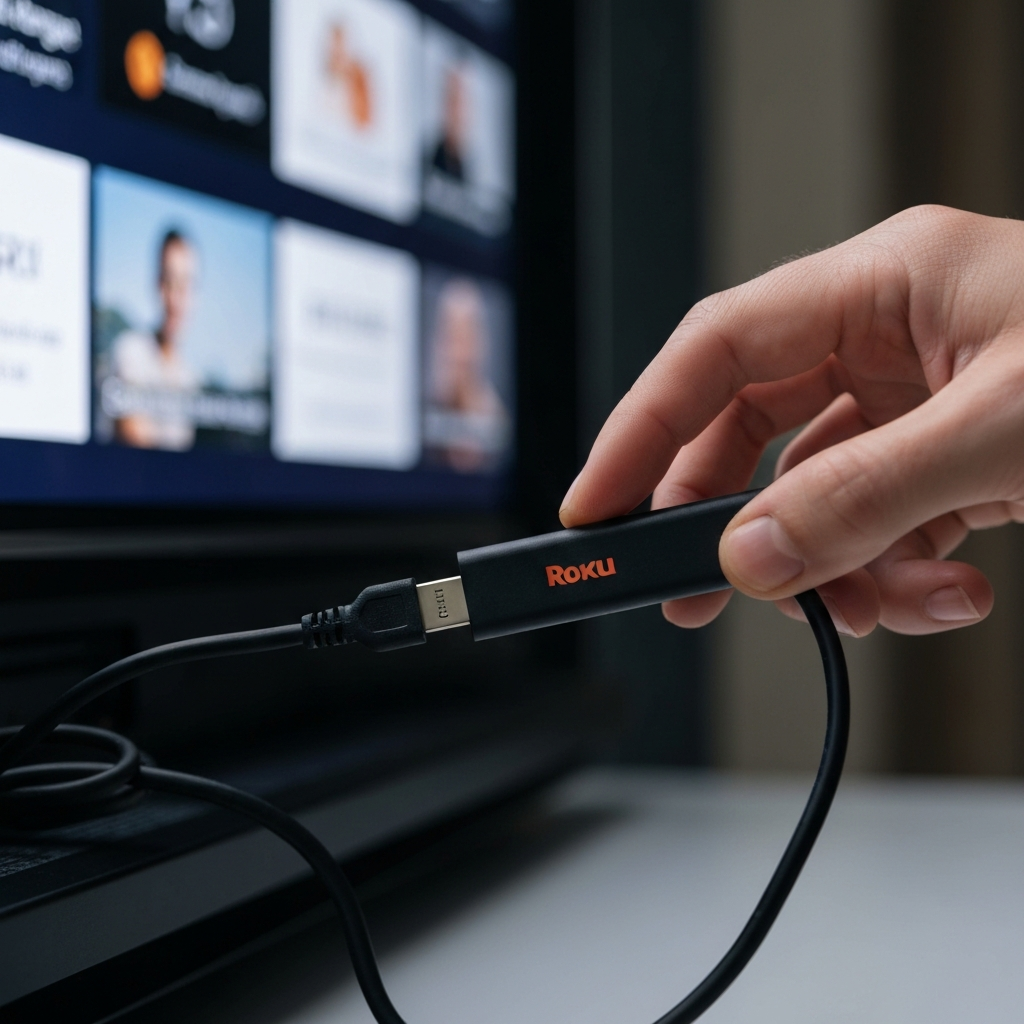
The first and most immediate step is to disconnect your Roku from its power source. This allows the device to cool down without drawing additional power and potentially exacerbating the problem. If you see a red light on your Roku or a warning message about overheating on your TV screen, unplugging it is non-negotiable. Allow the device to rest for at least 10 minutes. This initial cooling period can often resolve minor overheating issues caused by prolonged use. After 10 minutes, plug it back in and see if the problem persists. If it does, proceed to the next steps.
Step 2: Relocating Your Roku for Better Airflow
Optimize Placement for Ventilation
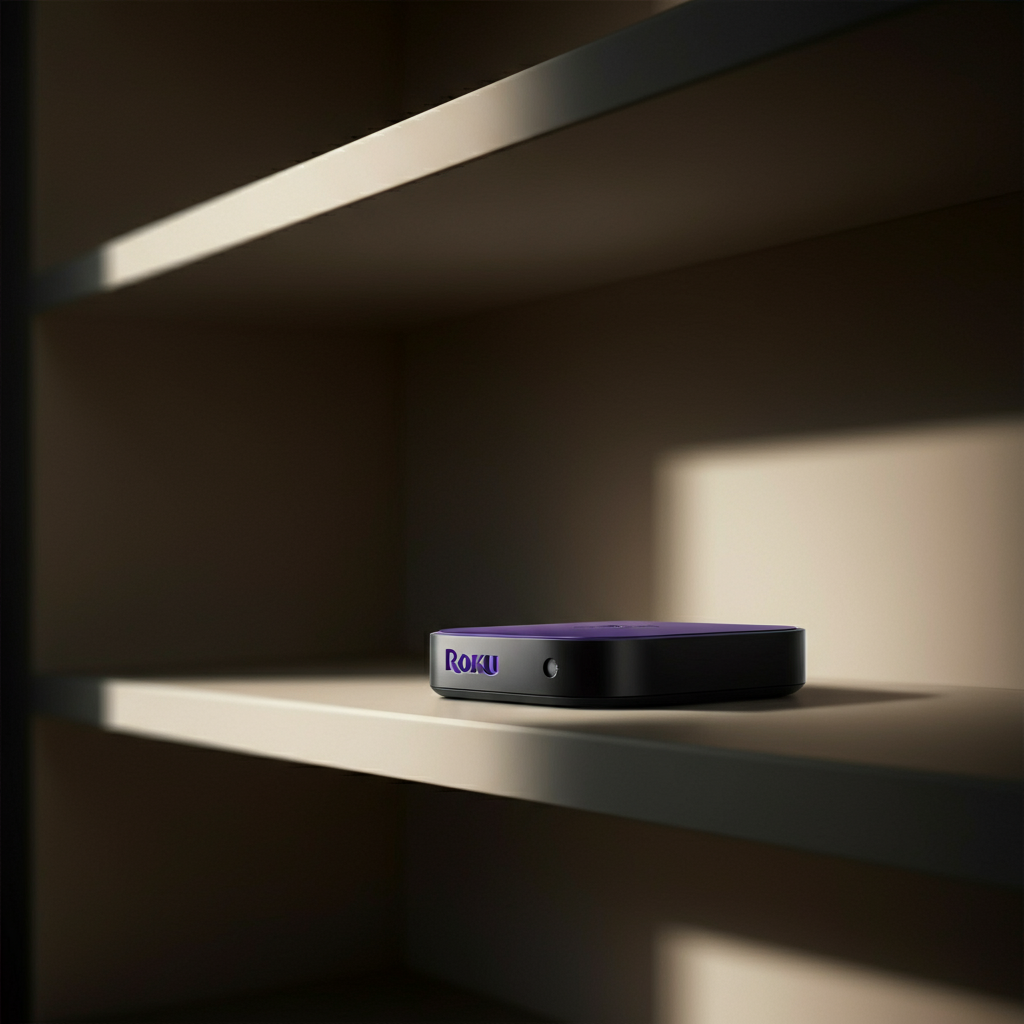
The physical location of your Roku can significantly impact its operating temperature. Avoid placing your Roku in enclosed spaces like cabinets or behind other electronic devices that generate heat. Proper ventilation is essential for dissipating heat effectively. Ensure there is ample space around the Roku to allow air to circulate freely. Direct sunlight or proximity to heat-generating devices like gaming consoles or routers can contribute to overheating. Consider moving your Roku to a cooler, more open area to improve airflow.
Step 3: Utilize an HDMI Extender
Distance from the Heat Source
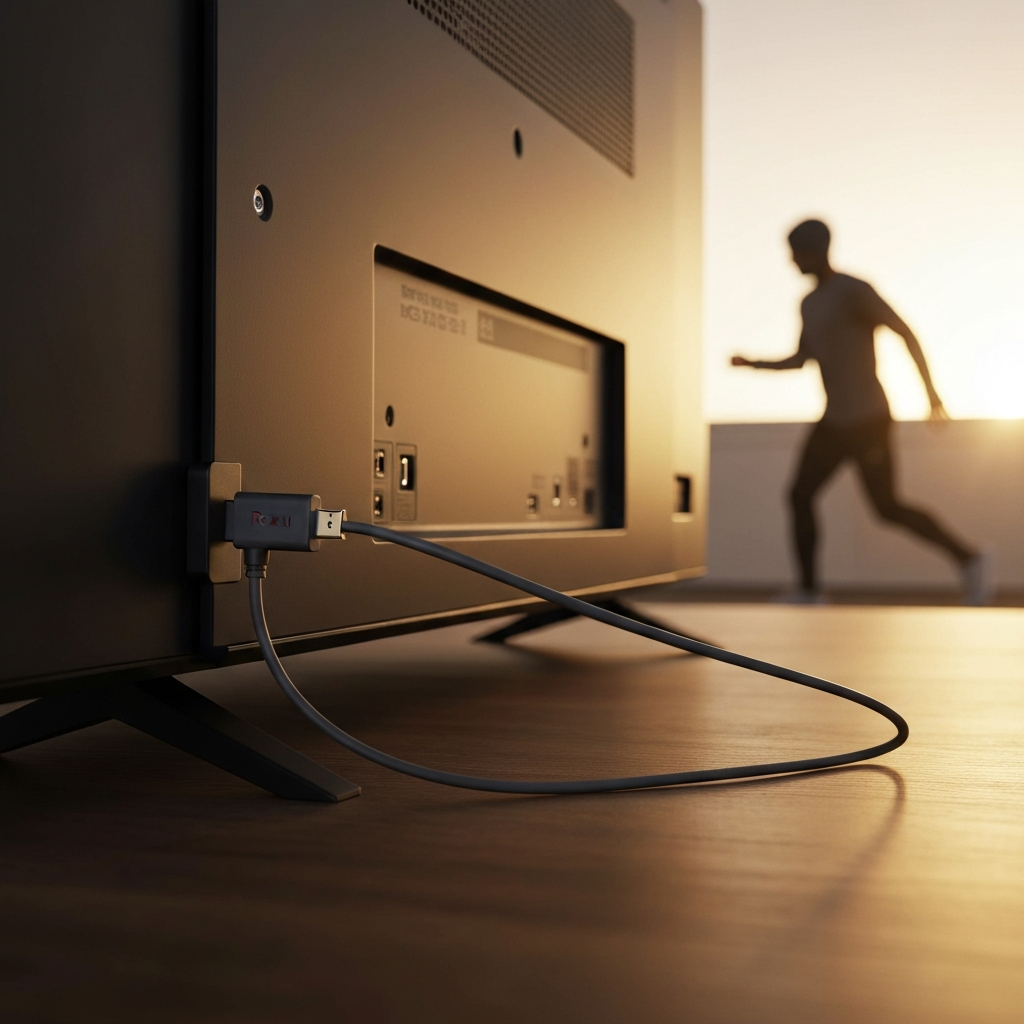
For Roku streaming sticks that plug directly into the back of the TV, heat buildup can be a common issue. TVs themselves generate a considerable amount of heat, which can transfer to the Roku. Using an HDMI extender cable creates distance between the Roku and the TV, reducing heat exposure. HDMI extenders are inexpensive and readily available online or at electronics stores. This simple addition can make a significant difference in preventing overheating, especially for stick-style devices. Consider this an essential accessory for devices plugged directly into the HDMI port.
Step 4: Power Source Considerations
Alternative Power Options
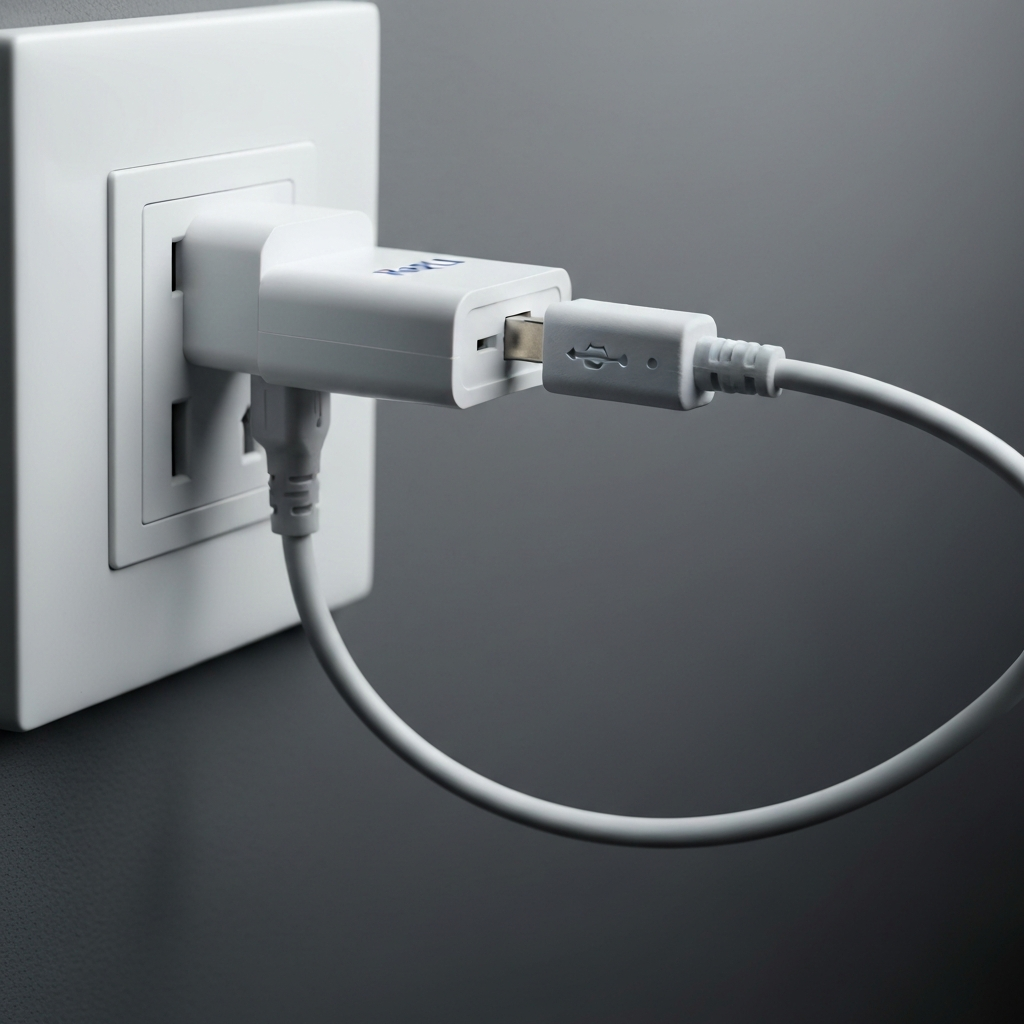
Some Roku devices can be powered directly from a USB port on the TV. While convenient, this may not always provide the optimal power supply. If your Roku is overheating, try using a dedicated AC wall adapter instead. The TV's USB port might not deliver consistent or sufficient power, leading to increased heat generation. Using the provided AC adapter ensures that your Roku receives the correct voltage and amperage, minimizing the risk of overheating due to power fluctuations. Ensure the adapter is plugged directly into a wall socket and not a power strip to avoid potential issues.
Step 5: Active Cooling with a Fan
Increase Air Circulation
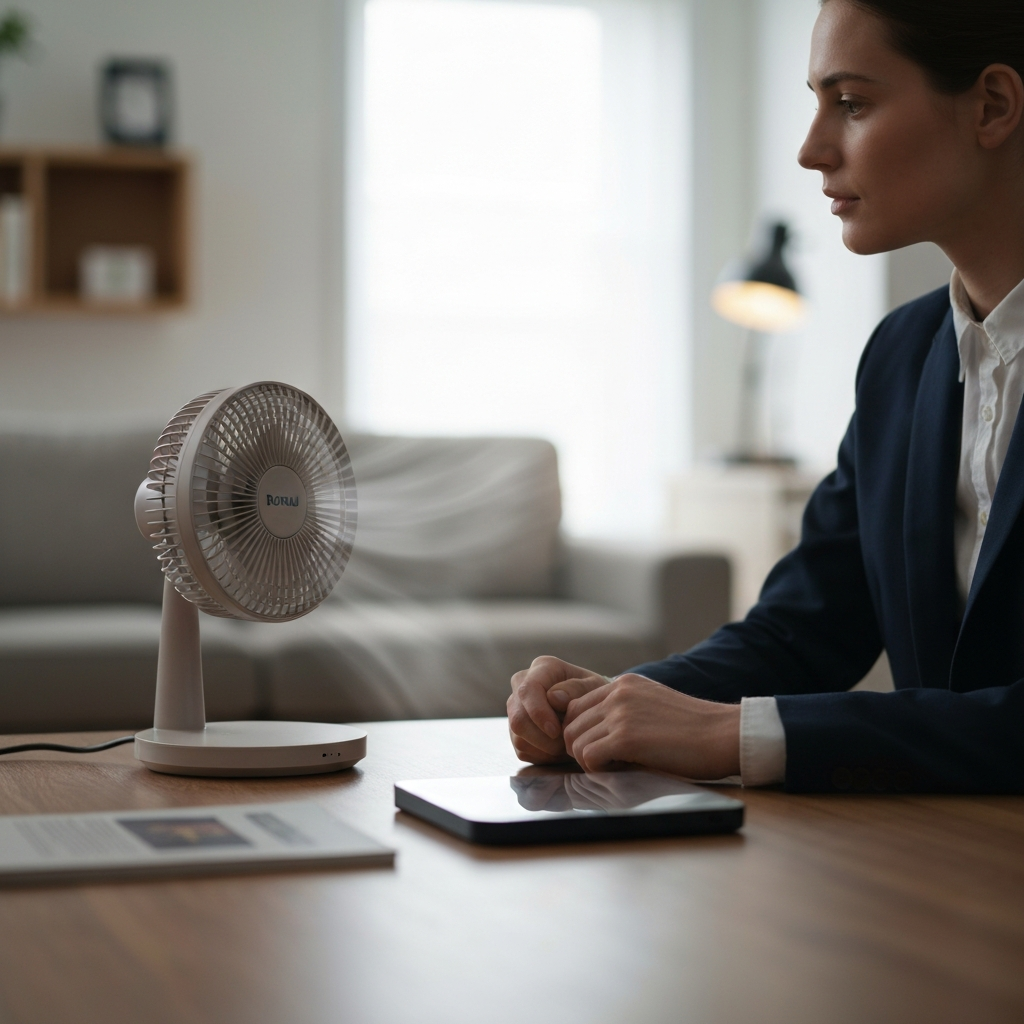
If passive cooling methods aren't sufficient, consider using a small fan to actively circulate air around your Roku. A USB-powered desk fan can be placed near the device to provide a constant flow of cooling air. Position the fan so that it blows air directly onto the Roku, without obstructing any ventilation openings. In hotter climates, you may need to cool the entire room using an air conditioner or by opening windows (if the outside temperature is cooler). Remember to prioritize both the Roku's immediate environment and the overall room temperature.
Step 6: Implementing a Heatsink
Advanced Cooling Solution
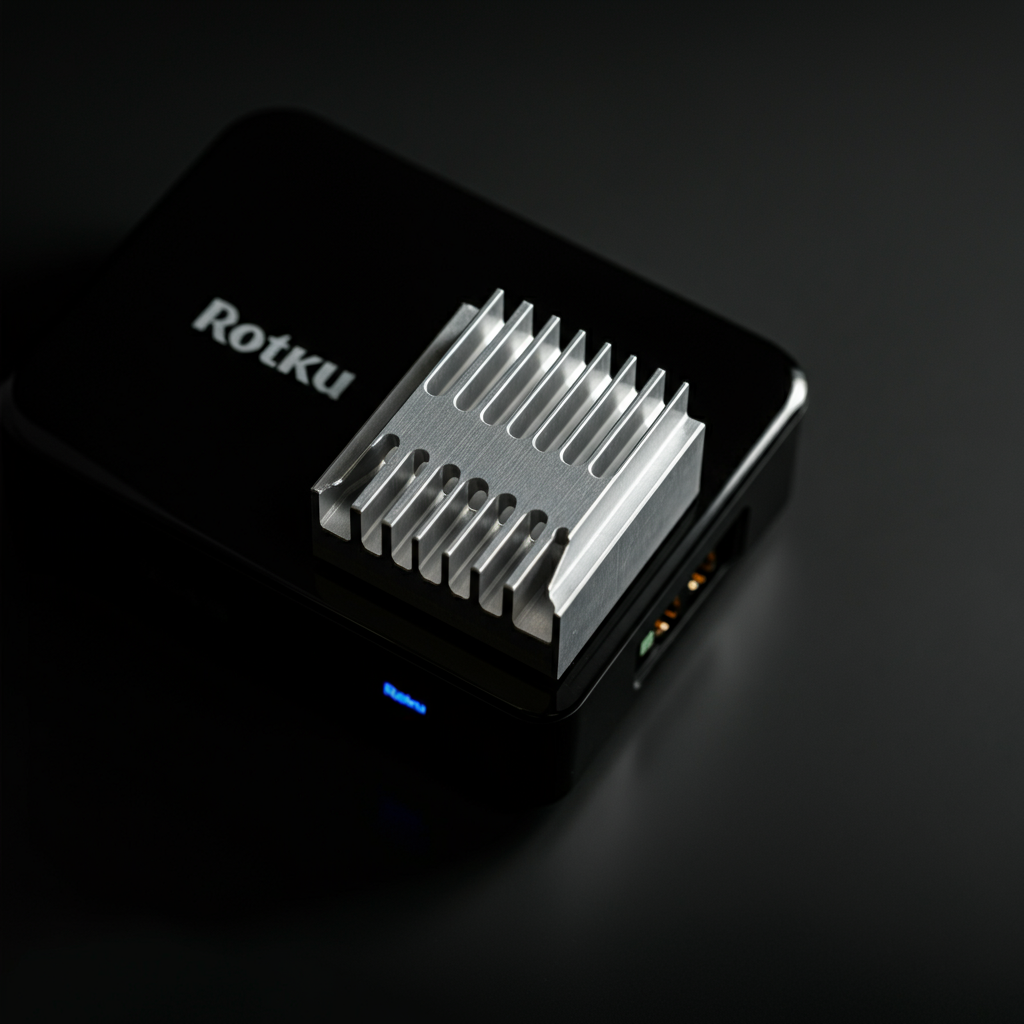
For advanced users or those experiencing persistent overheating issues, installing a heatsink can provide a significant improvement. A heatsink is a metal component designed to draw heat away from electronic devices. They are commonly used in computers to cool CPUs and GPUs. You can purchase small, self-adhesive heatsinks designed for smaller devices. Ensure the heatsink is properly sized and securely attached to the Roku's casing, ideally over the main processor area (if you can identify it). This method requires some technical knowledge but can be highly effective in reducing operating temperatures.
Step 7: When All Else Fails: Contact Roku Support
Seeking Professional Assistance
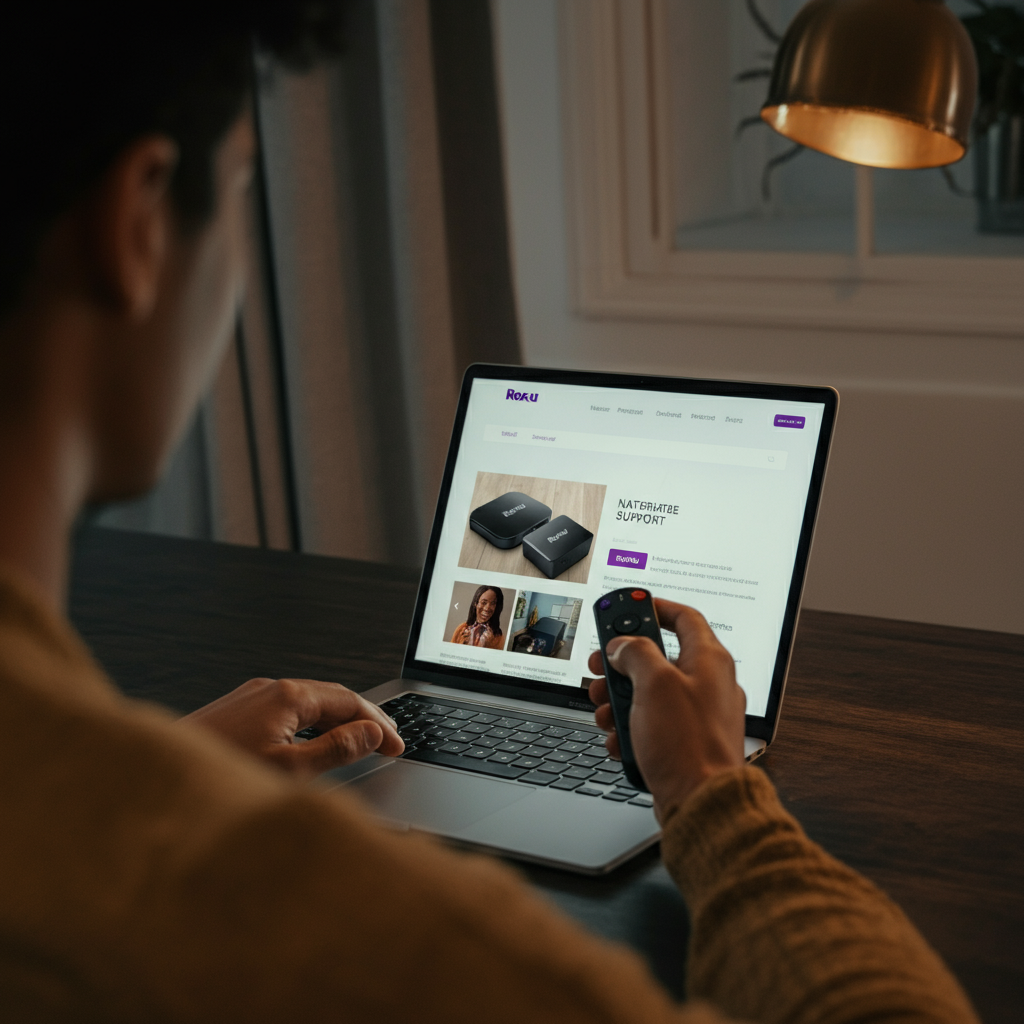
If you've tried all the troubleshooting steps outlined above and your Roku continues to overheat, it's time to contact Roku support. There may be an underlying hardware issue that requires professional attention. Your Roku may still be under warranty, which could entitle you to a replacement device. Have your Roku model number and purchase date ready when you contact support for faster assistance. Don't hesitate to reach out – a faulty device can pose a fire risk if left unattended.
Common Mistakes to Avoid
- Ignoring Overheating Warnings: A red light or on-screen message is a serious warning. Ignoring it can cause permanent damage.
- Obstructing Ventilation: Never cover your Roku or place it in an enclosed space without proper airflow.
- Using Damaged Cables: A frayed or damaged power cable can cause power fluctuations and lead to overheating.
- Overloading Power Strips: Connecting too many devices to a single power strip can reduce the voltage available to each device.
Pro Tips
- Regularly clean the Roku and its surroundings from dust. Dust acts as an insulator and traps heat.
- Consider using a smart plug to automatically power off the Roku when not in use.
- Monitor the Roku's performance. If you notice sluggishness or frequent freezing, it could be a sign of overheating.
FAQ Section
- Q: How hot is too hot for my Roku?
- A: If you can't comfortably hold your hand on the Roku for more than a few seconds, it's likely overheating.
- Q: Will overheating damage my Roku?
- A: Yes, prolonged overheating can damage the internal components of your Roku, shortening its lifespan.
- Q: Is it normal for my Roku to get warm?
- A: Yes, it's normal for your Roku to get warm during use, but it should never be excessively hot.