Locking your Tesla is a fundamental aspect of vehicle security, and thankfully, Tesla offers a variety of methods to ensure your car remains protected. From utilizing the intuitive touchscreen interface to leveraging automatic locking features and even using your smartphone, securing your Tesla is straightforward and adaptable to your specific needs and preferences.
This comprehensive guide will walk you through each locking method in detail, providing step-by-step instructions, practical tips, and important considerations to keep in mind. Whether you're a new Tesla owner or simply looking to brush up on your knowledge of its security features, this guide will provide you with the information you need to confidently secure your vehicle.
Understanding the nuances of each locking method will empower you to choose the most convenient and effective approach for any given situation. Moreover, we'll also explore additional security features that can further enhance your Tesla's protection.
Step 1: Locking from the Inside Using the Touchscreen
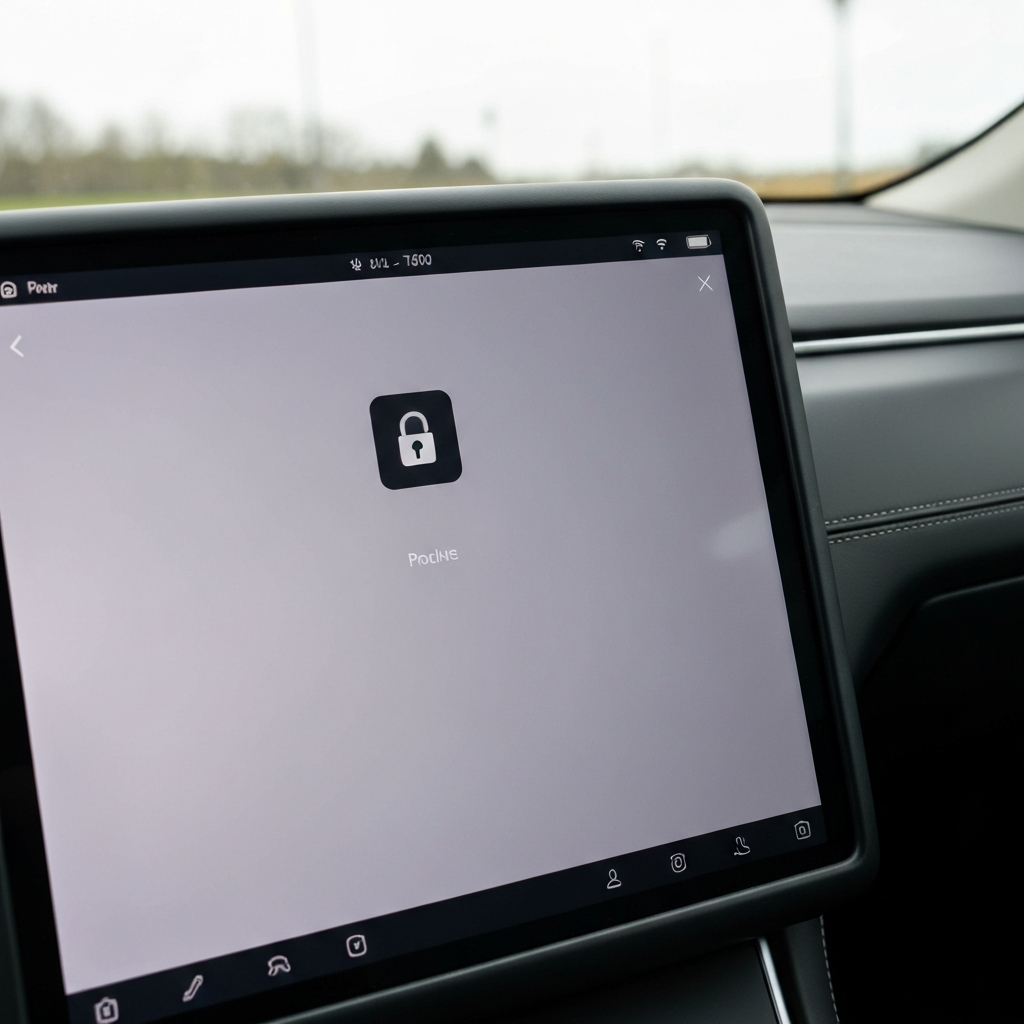
The most direct way to lock your Tesla from the inside is using the touchscreen. Locate the lock icon at the top of the screen, usually positioned next to the clock. A single tap on this icon will toggle the lock status. When the icon displays a closed lock, your Tesla is secured. Conversely, an open lock icon indicates that the doors are unlocked. This method is particularly useful if you want to ensure the doors are locked before exiting the vehicle or if you prefer a manual approach.
Step 2: Automatic Locking with Walk-Away Door Lock
Tesla's "Walk-Away Door Lock" feature offers unparalleled convenience. When enabled, your Tesla will automatically lock itself a few moments after you exit the vehicle and move a certain distance away, provided you have your phone key or key fob with you. To enable this feature, navigate to "Controls" > "Locks" > "Walk-Away Door Lock" on your Tesla's touchscreen. Ensure that Bluetooth is enabled on your phone, as this is how the car detects your phone key. Also, confirm that you have set up your phone as a key. The vehicle will flash its exterior lights to confirm that the doors have locked successfully.
Common Mistakes to Avoid
- Leaving your phone key inside the car: The car won't lock if it detects a key inside.
- Bluetooth is disabled on your phone: The car needs to detect your phone via Bluetooth.
- Doors or trunk not fully closed: Ensure all entry points are properly shut.
- "Exclude Home" setting: If enabled and you're parked at your designated "Home" location, the car won't auto-lock.
Step 3: Locking with the Tesla Mobile App
The Tesla mobile app provides remote control over various vehicle functions, including locking and unlocking. Simply open the app on your smartphone, and you'll see a lock icon. Tapping this icon will instantly lock or unlock your Tesla, regardless of your location. This is particularly handy if you're unsure whether you locked the car after walking away or if you need to grant someone remote access to your vehicle.
Step 4: Locking with the Key Card
The Tesla key card provides a physical method of locking and unlocking your vehicle. Locate the card reader on the driver's side door pillar, between the window and the door frame. Tap the key card against this pillar, and the car will lock. The exterior lights will flash as confirmation. This method is useful as a backup if you don't have your phone or key fob readily available. Keep your key card in a safe and accessible place, such as your wallet or purse.
Step 5: Locking with the Key Fob (Optional)
If you've purchased the optional Tesla key fob, locking your car is as simple as pressing the center button once. The car's exterior lights will flash to confirm the locking action. Pressing the center button twice unlocks the car. If the lights flash three times, this indicates the doors or trunk are not completely closed and the car has not successfully locked.
Step 6: Locking with Voice Commands
Tesla's voice command feature allows you to control various vehicle functions using your voice, including locking the doors. Press the voice command button (location varies depending on your Tesla model: Model S/X – button on right side of steering wheel; Model 3/Y – scroll button on right side of steering wheel or microphone button on touchscreen), and clearly say "Lock doors." The car will execute the command and lock the doors.
Step 7: Enhancing Security with Additional Features
Beyond basic locking, Tesla offers several features to enhance security:
Car Left Open Notifications
Enable "Car Left Open Notifications" in "Controls" > "Locks" on the touchscreen. You'll receive a phone notification if doors, windows, or the trunk are left open or if the car is left unlocked.
Security Alarm
Activate the "Security Alarm" in "Controls" > "Safety & Security." This feature triggers an alarm and flashing lights if the car is opened without a valid key.
PIN to Drive
Set up a "PIN to Drive" in "Controls" > "Safety & Security." This requires a 4-digit PIN to be entered before the car can be driven, adding an extra layer of protection against theft.
Sentry Mode
Enable "Sentry Mode" in "Controls" > "Safety & Security." When activated, the car's cameras monitor the surroundings for suspicious activity and record footage if a threat is detected. Note: Sentry Mode consumes battery power and deactivates when the battery drops below 20%.
Software Updates
Ensure your Tesla software is always up to date. Tesla releases updates that may contain security enhancements and bug fixes.
Pro Tips
- Enable "Mirror Auto Fold" (Controls > Mirrors) to visually confirm the car is locked.
- Use "Lock Confirmation Sound" (Controls > Locks) for an audible locking confirmation.
- Consider enabling "Driver Door Unlock Mode" (Controls > Locks) to only unlock the driver's door when you approach.
Safety Considerations
Always double-check that your Tesla is locked, especially when relying on the Walk-Away Door Lock feature. External factors such as interference or a weak Bluetooth connection can sometimes prevent the automatic locking system from functioning correctly. It's also a good practice to be aware of your surroundings when using the mobile app to unlock the car remotely.
Conclusion
Locking your Tesla effectively is a crucial part of responsible vehicle ownership. By understanding and utilizing the various locking methods available – from the convenient touchscreen to the advanced automatic locking features – you can ensure your Tesla remains secure. Remember to also explore the additional security features such as Sentry Mode and PIN to Drive for an added layer of protection. Prioritize safety, stay informed, and enjoy the peace of mind that comes with knowing your Tesla is well-protected.