Technology is integral to modern life, but it can be frustrating when things go wrong. Instead of immediately calling a technician, learning basic troubleshooting skills can save you time and money. This guide provides simple, step-by-step instructions for diagnosing and resolving common electronic issues.
We'll cover everything from power problems to internet connectivity, providing clear explanations and practical solutions. Remember to always prioritize safety when working with electronics. Let's empower you to become your own tech support!
By following these steps, you'll be well-equipped to tackle many of the tech problems you encounter. We'll arm you with the knowledge to diagnose common problems and, more importantly, provide safe and effective solutions.
Step 1: Identifying the Problem
Gather Information
Before attempting any fixes, clearly define the issue. What exactly is happening? When did it start? What were you doing when the problem occurred? The more information you gather, the easier it will be to pinpoint the cause. Write down any error messages or unusual behaviors. Specificity is key! Vague descriptions like "my computer isn't working" are far less helpful than "my computer displays a blue screen with a specific error code after I try to open a particular application."

Step 2: Checking the Obvious
Power Cycle and Connections
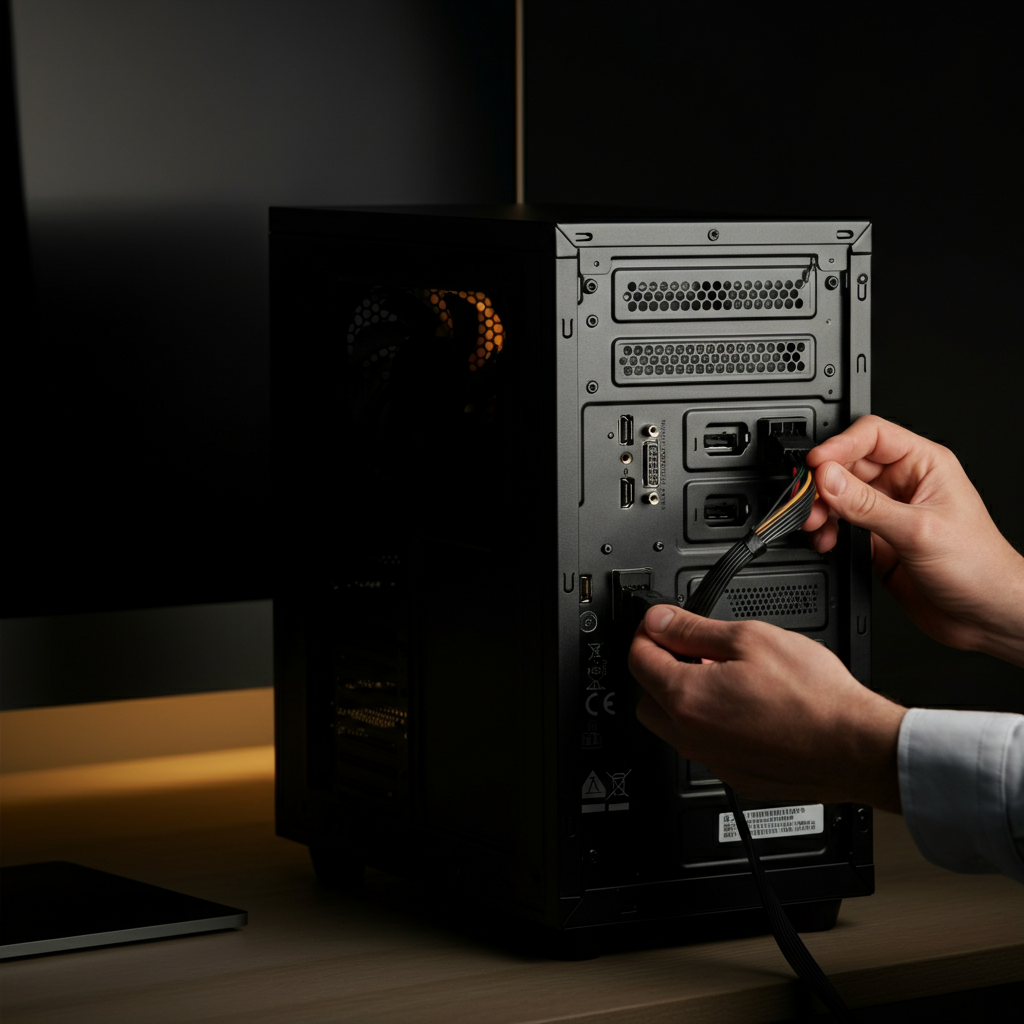
Often, the simplest solutions are the most effective. Begin by power cycling the device. Unplug it from the power source, wait 30 seconds, and plug it back in. This resets the device and can resolve temporary glitches. Next, check all connections. Ensure cables are securely plugged into both the device and the wall outlet. For computers, check the monitor cable, USB connections, and network cable. A loose connection is a common culprit. Visually inspect the cables for any signs of damage, such as frayed wires or bent connectors.
Step 3: Diagnosing Software Issues
Restart and Update
Software glitches are a frequent cause of problems. Start by restarting the device. This closes all running programs and clears the system's memory. If the problem persists, check for software updates. Outdated software can cause compatibility issues and performance problems. Operating systems and applications regularly release updates to fix bugs and improve stability. Ensure your antivirus software is up-to-date as well.

Step 4: Internet Connectivity Problems
Router Reset and Network Diagnosis
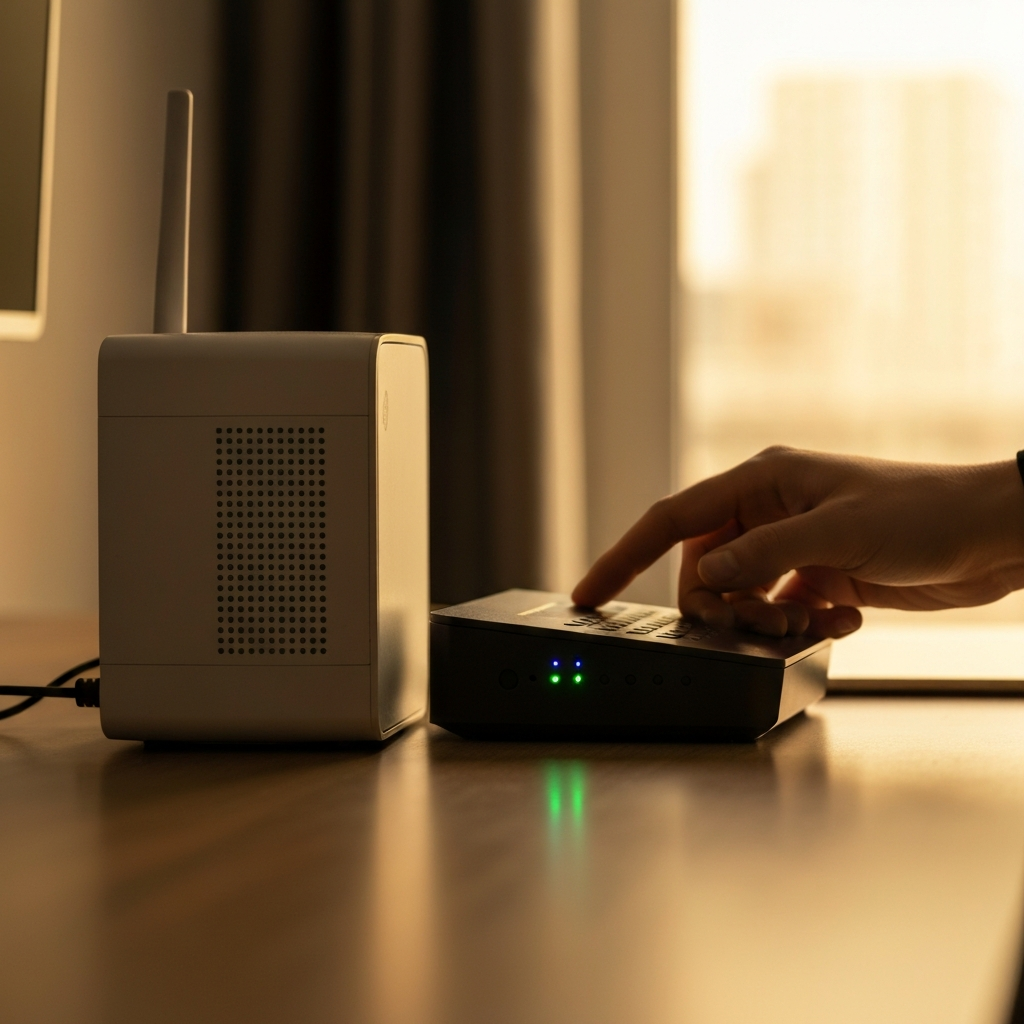
If you're experiencing internet connectivity issues, begin by power cycling your modem and router. Unplug them from the power source, wait 30 seconds, plug the modem back in, wait for it to fully connect (indicated by the status lights), and then plug the router back in. After they’ve restarted, check your network settings on your device. Ensure you are connected to the correct Wi-Fi network and that your IP address is configured correctly (usually automatically). You can also try running the network troubleshooter built into your operating system. Consult your ISP if issues persist.
Step 5: Resolving Freezing or Crashing
Task Manager and Safe Mode
When a program freezes or your computer crashes, the Task Manager (Windows) or Activity Monitor (macOS) can help identify the culprit. Open the Task Manager (Ctrl+Shift+Esc on Windows) and look for programs that are not responding or are consuming excessive resources (CPU or memory). Select the program and click "End Task." If your computer consistently crashes, try booting into Safe Mode. Safe Mode starts your computer with a minimal set of drivers and services, allowing you to diagnose whether the problem is caused by a specific driver or software. If the problem disappears in Safe Mode, it's likely a software issue.

Step 6: Dealing with Error Messages
Search and Support
Error messages can seem cryptic, but they often provide valuable clues about the problem. Copy the exact error message and search for it online. Many online forums and support websites offer solutions to common error messages. Check the official support documentation for the device or software. Manufacturers often provide troubleshooting guides and FAQs. If the error message relates to hardware, it might indicate a failing component.

Tools or Materials Required
- Screwdrivers (various sizes)
- Multimeter
- Anti-static wrist strap
- Compressed air
Safety Considerations
Always disconnect devices from the power source before opening them. Use an anti-static wrist strap to prevent electrostatic discharge, which can damage sensitive components. Be careful when handling sharp objects or working with electricity. If you're unsure about any step, consult a professional.
Pro Tips
Back up your data regularly to prevent data loss in case of hardware failure. Keep your software updated to minimize security vulnerabilities. Document any troubleshooting steps you take, so you can refer to them later if the problem recurs. Consider using a surge protector to protect your electronics from power surges.
FAQ Section
Q: My computer won't turn on at all. What should I do?
A: First, ensure the power cord is securely plugged into both the computer and the wall outlet. Check the power supply switch (if applicable). If the computer still won't turn on, the power supply may be faulty. Consider testing with another known good power supply or consult a technician.
Q: My internet is slow. What can I do?
A: Start by restarting your modem and router. Check your internet speed using an online speed test. Close any unnecessary programs that may be consuming bandwidth. If the problem persists, contact your internet service provider.
Q: My printer isn't printing. What should I check?
A: Ensure the printer is turned on and connected to the computer (either via USB or Wi-Fi). Check the paper tray for paper jams. Verify that the printer has ink or toner. Try printing a test page.
Conclusion
Troubleshooting tech issues can seem daunting, but with a systematic approach and a little patience, you can resolve many common problems yourself. Remember to gather information, check the obvious, and prioritize safety. By following the steps outlined in this guide, you'll be well-equipped to tackle a wide range of electronic issues and save yourself time and money.