Is your trusty old laptop feeling a bit sluggish? Don't resign it to the shelf just yet! With a few carefully chosen upgrades, you can breathe new life into your machine and significantly improve its performance. This guide will walk you through the most effective DIY upgrades, helping you transform your laptop from a slowpoke to a speed demon. Remember to back up your important data before beginning any hardware modifications.
We'll cover everything from upgrading your RAM and storage to cleaning the internals and optimizing your software. While some upgrades might seem daunting, we'll break down each step with clear instructions and helpful tips to ensure a smooth and successful experience. Let's get started and unlock the hidden potential within your aging laptop!
Before starting, it is crucial to verify the compatibility of any potential upgrade components with your laptop model. Check your laptop manufacturer's website or use a compatible part finder tool. Incompatible parts can damage your laptop or simply not work.
Step 1: Assess Your Laptop's Current Performance
Evaluate Boot Times and Application Loading
Before diving into any upgrades, it's essential to understand your laptop's current performance baseline. Note how long it takes to boot up, open frequently used applications, and perform everyday tasks like browsing the web or working on documents. Use Task Manager (Windows) or Activity Monitor (macOS) to identify bottlenecks – processes consuming excessive CPU, memory, or disk resources. This assessment helps you prioritize upgrades based on your specific needs. Identifying the primary performance bottleneck is key to an efficient upgrade strategy.

Step 2: Upgrade Your RAM (Random Access Memory)
Increase Memory Capacity for Smoother Multitasking
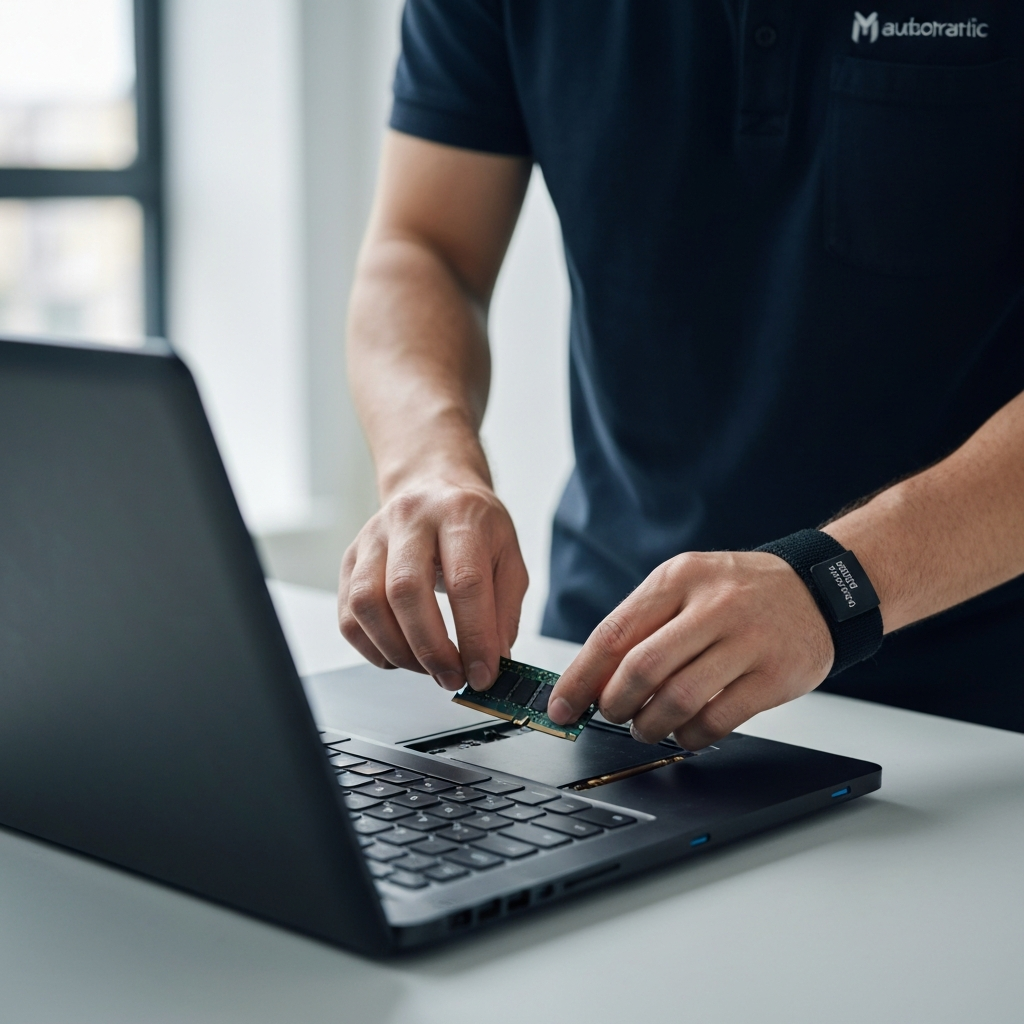
One of the most impactful upgrades you can make is increasing your laptop's RAM. More RAM allows your computer to handle more tasks simultaneously without slowing down. Determine the maximum RAM capacity supported by your laptop's motherboard before purchasing new RAM modules. Consult your laptop's manual or the manufacturer's website for specifications. To install the RAM, carefully open the laptop's access panel (usually on the bottom). Ground yourself to avoid static electricity damage. Locate the RAM slots, gently push aside the retaining clips, and insert the new RAM modules firmly until they click into place.
Step 3: Switch to an SSD (Solid State Drive)
Replace Your HDD for Blazing-Fast Speeds
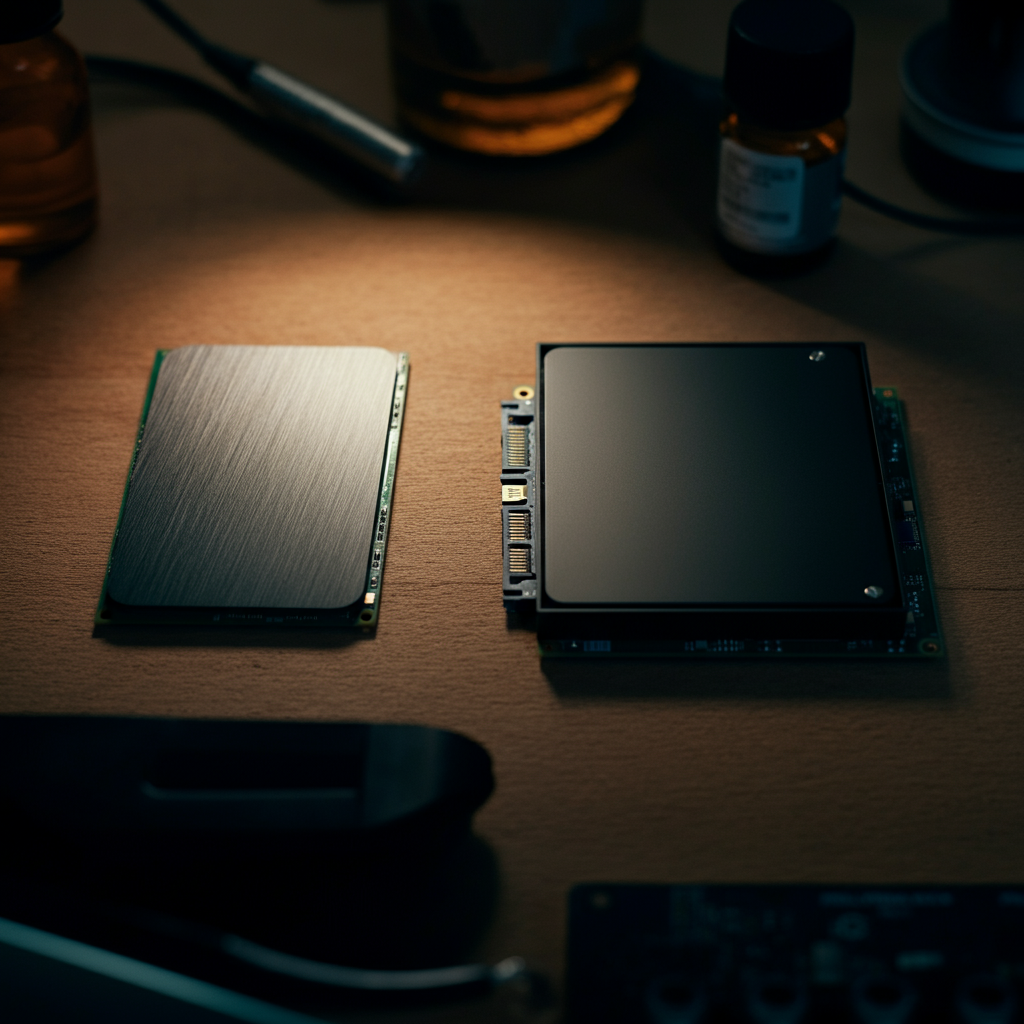
Replacing your traditional hard disk drive (HDD) with an SSD is arguably the single biggest performance boost you can achieve. SSDs offer significantly faster read and write speeds, resulting in quicker boot times, faster application loading, and improved overall responsiveness. Clone your existing HDD to the SSD before replacing it to avoid reinstalling your operating system and applications. Use a cloning tool like Clonezilla or Macrium Reflect. After cloning, carefully remove the HDD and replace it with the SSD. Ensure the SSD is securely mounted in the drive bay.
Step 4: Clean the Internal Components
Remove Dust and Debris for Optimal Cooling
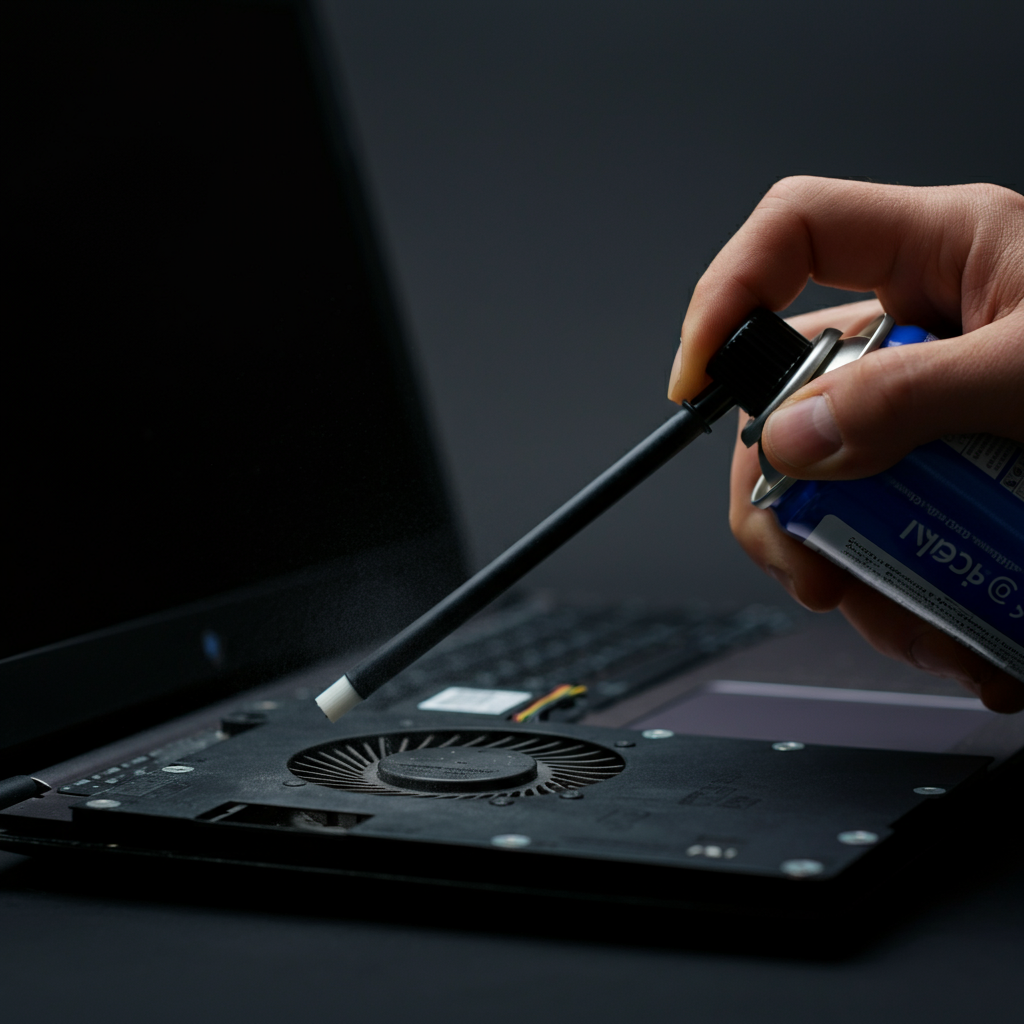
Over time, dust and debris can accumulate inside your laptop, obstructing airflow and causing overheating. Overheating can lead to performance throttling and potentially damage your components. Always disconnect the battery before cleaning any internal components. Use a can of compressed air to gently blow away dust from the fans, heatsinks, and other components. Be careful not to spray directly into the fan bearings, as this can damage them. A soft brush can also be used to remove stubborn dust particles. Ensure all components are completely dry before reassembling the laptop.
Step 5: Update Your Operating System and Drivers
Ensure Compatibility and Optimal Performance
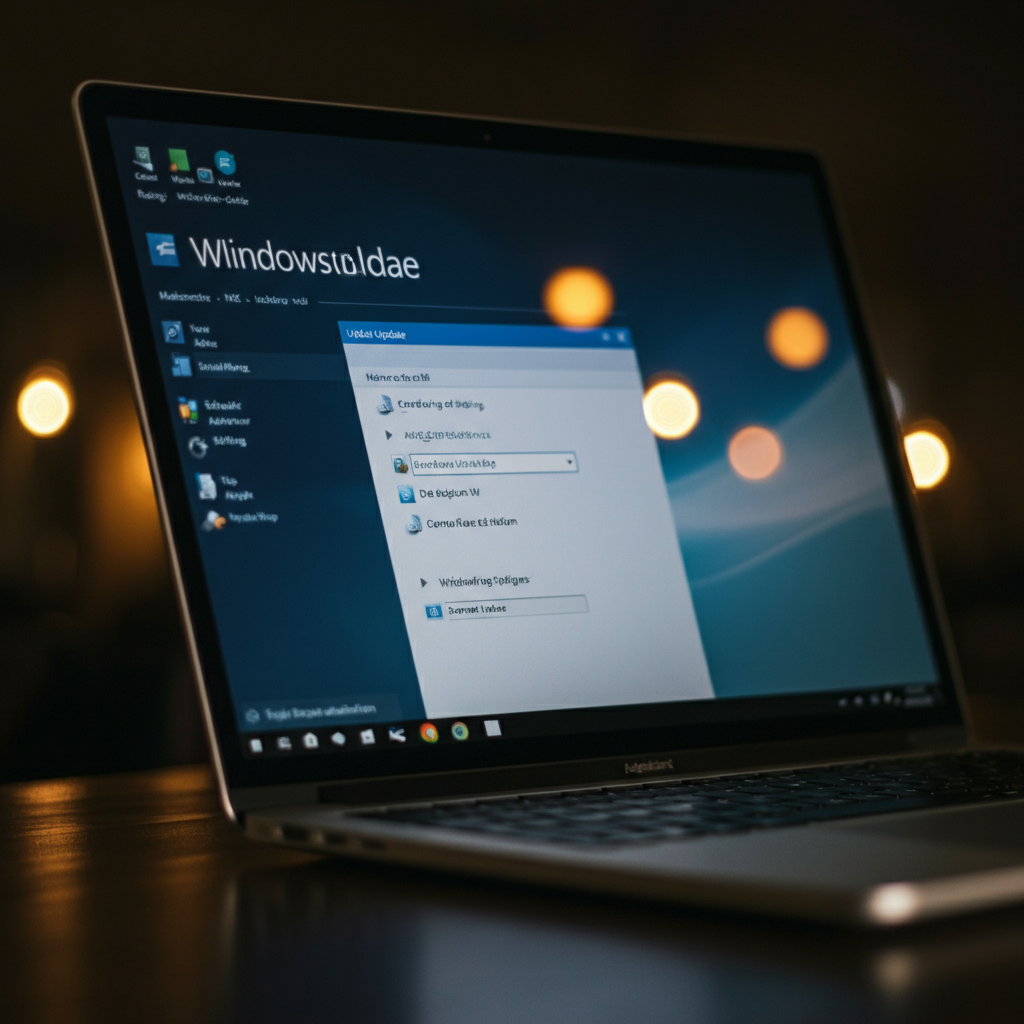
Keeping your operating system and drivers up to date is crucial for maintaining optimal performance and security. Updates often include performance enhancements, bug fixes, and security patches. Before updating drivers, create a system restore point so you can revert to a previous state if anything goes wrong. Check for updates regularly through your operating system's update settings and the manufacturer's website. Ensure all drivers are compatible with your hardware and operating system.
Step 6: Defragment Your Hard Drive (HDD Only)
Organize Data for Faster Access
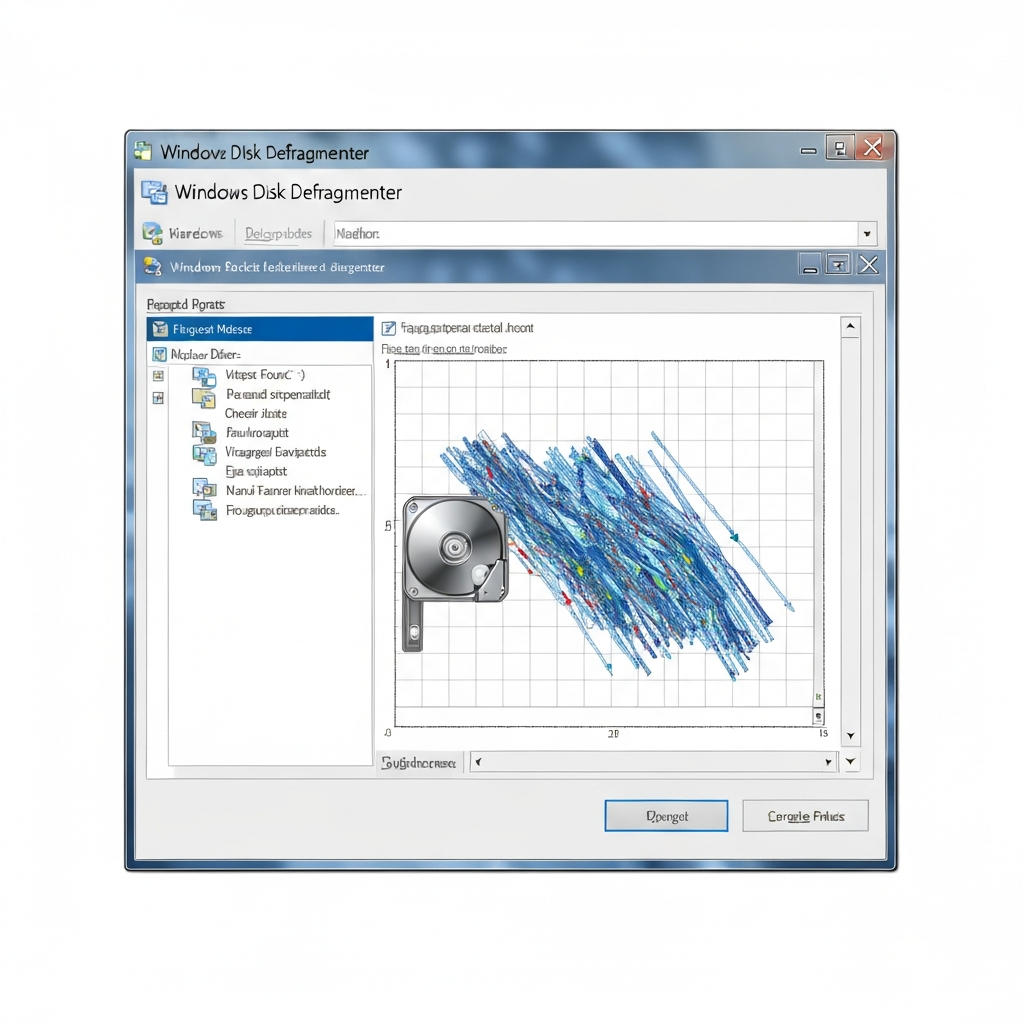
If you haven't upgraded to an SSD and are still using an HDD, defragmenting your hard drive can improve performance by organizing fragmented data and consolidating free space. Do not defragment an SSD; it will shorten its lifespan. Windows includes a built-in defragmentation tool that can be accessed through the Disk Defragmenter utility. Schedule regular defragmentation to maintain optimal performance.
Step 7: Disable Unnecessary Startup Programs
Reduce Boot Time and Resource Consumption
Many programs automatically launch when you start your laptop, consuming valuable resources and slowing down boot times. Disable unnecessary startup programs to free up memory and improve performance. Be cautious when disabling startup programs; disabling essential system processes can cause instability. Use Task Manager (Windows) or System Preferences (macOS) to manage startup items. Research any unfamiliar programs before disabling them to ensure they are not critical for system functionality.
Tools or Materials Required
* Screwdriver set (Phillips head and flathead) * Anti-static wrist strap * Compressed air * Soft brush * RAM modules (compatible with your laptop) * SSD (compatible with your laptop) * USB drive (for cloning your HDD) * Cloning software (e.g., Clonezilla, Macrium Reflect)Common Mistakes to Avoid
* Forgetting to disconnect the battery before working on internal components. * Using excessive force when installing or removing components. * Not grounding yourself and causing static electricity damage. * Installing incompatible RAM or SSD modules. * Spraying compressed air directly into fan bearings. * Defragmenting an SSD.Safety Considerations
* Always disconnect the laptop from the power adapter before opening it. * Wear an anti-static wrist strap to prevent static electricity damage. * Handle components with care to avoid damaging them. * Consult your laptop's manual or a professional if you are unsure about any step. * Keep small parts out of reach of children and pets.Pro Tips
* Watch video tutorials online before attempting any upgrades. * Take photos of each step as you disassemble the laptop to help with reassembly. * Organize screws and small parts in labeled containers to avoid losing them. * Consider upgrading your laptop's wireless card for faster Wi-Fi speeds. * Reinstall your operating system after upgrading to an SSD for optimal performance.FAQ Section
Q: How do I know what type of RAM my laptop uses?
A: Check your laptop's manual or use a compatible part finder tool on the manufacturer's website. Crucial.com also offers a reliable scanner tool.
Q: Can I upgrade my laptop's graphics card?
A: In most cases, laptop graphics cards are integrated into the motherboard and cannot be upgraded. However, some high-end gaming laptops may have removable graphics cards.
Q: How long does it take to upgrade a laptop?
A: The time it takes to upgrade a laptop depends on the complexity of the upgrade and your experience level. Upgrading RAM or an SSD typically takes 30-60 minutes.
Conclusion
By following these steps, you can significantly supercharge your old laptop and extend its lifespan. Upgrading your RAM and storage, cleaning the internals, and optimizing your software are all effective ways to improve performance and breathe new life into your aging machine. Remember to take your time, be careful, and consult your laptop's manual or a professional if you are unsure about any step. With a little effort, you can transform your sluggish laptop into a responsive and reliable workhorse. Good luck!