A "bricked" phone is essentially a non-functional device, rendered useless like a brick. This unfortunate state can be triggered by a failed software update, a corrupted operating system, or even hardware malfunctions. While the situation seems dire, many bricked phones can be revived with the right tools and troubleshooting steps. This guide offers a comprehensive approach to diagnose and potentially recover your seemingly dead device.
Before declaring your phone permanently deceased, it's crucial to exhaust all possible recovery methods. This guide will walk you through a series of troubleshooting steps, starting with the simplest solutions and progressing to more advanced techniques. Remember to proceed with caution and understand the risks involved, as some procedures can potentially void your warranty or further damage your device. Always back up your data if possible before attempting any recovery methods.
We'll cover everything from basic checks and forced restarts to more complex procedures like flashing stock firmware. By following this guide carefully, you'll increase your chances of bringing your bricked phone back to life. Let's get started!
Step 1: Perform a Hard Reset (Forced Restart)
The first and often simplest solution is to attempt a hard reset, also known as a forced restart. This process simulates disconnecting and reconnecting the battery, which can often resolve minor software glitches that may be causing the phone to appear bricked. The specific button combination varies depending on the phone model, but common combinations include holding the power button and volume up button simultaneously, or the power button and volume down button. Consult your phone's manual or search online for the specific hard reset procedure for your device. Keep holding the buttons until the phone either restarts or displays a recovery menu.

Step 2: Check the Battery and Charging Port
A seemingly obvious but often overlooked step is to thoroughly inspect the battery and charging port. Ensure the charging port is free of debris, lint, or corrosion. Use a can of compressed air or a small, non-metallic tool (like a toothpick) to carefully clean the port. If the phone has a removable battery, take it out and inspect it for any signs of damage, such as swelling or leakage. If possible, try using a different charger and charging cable to rule out any issues with the charging equipment. Sometimes, a completely drained battery can take a while to show any signs of charging, so leave it plugged in for at least 30 minutes before assuming it's not charging.

Step 3: Boot into Recovery Mode
Recovery mode is a special boot environment that allows you to perform various system-level tasks, such as wiping data, clearing the cache partition, and applying updates. Accessing recovery mode usually involves a specific button combination pressed during startup. Common combinations are Power + Volume Up, Power + Volume Down, or Power + Volume Up + Home button. The exact combination varies by manufacturer and model, so refer to your phone's documentation or search online. Once in recovery mode, you can use the volume buttons to navigate and the power button to select options. Try wiping the cache partition first, as this can often resolve software conflicts without deleting your personal data.
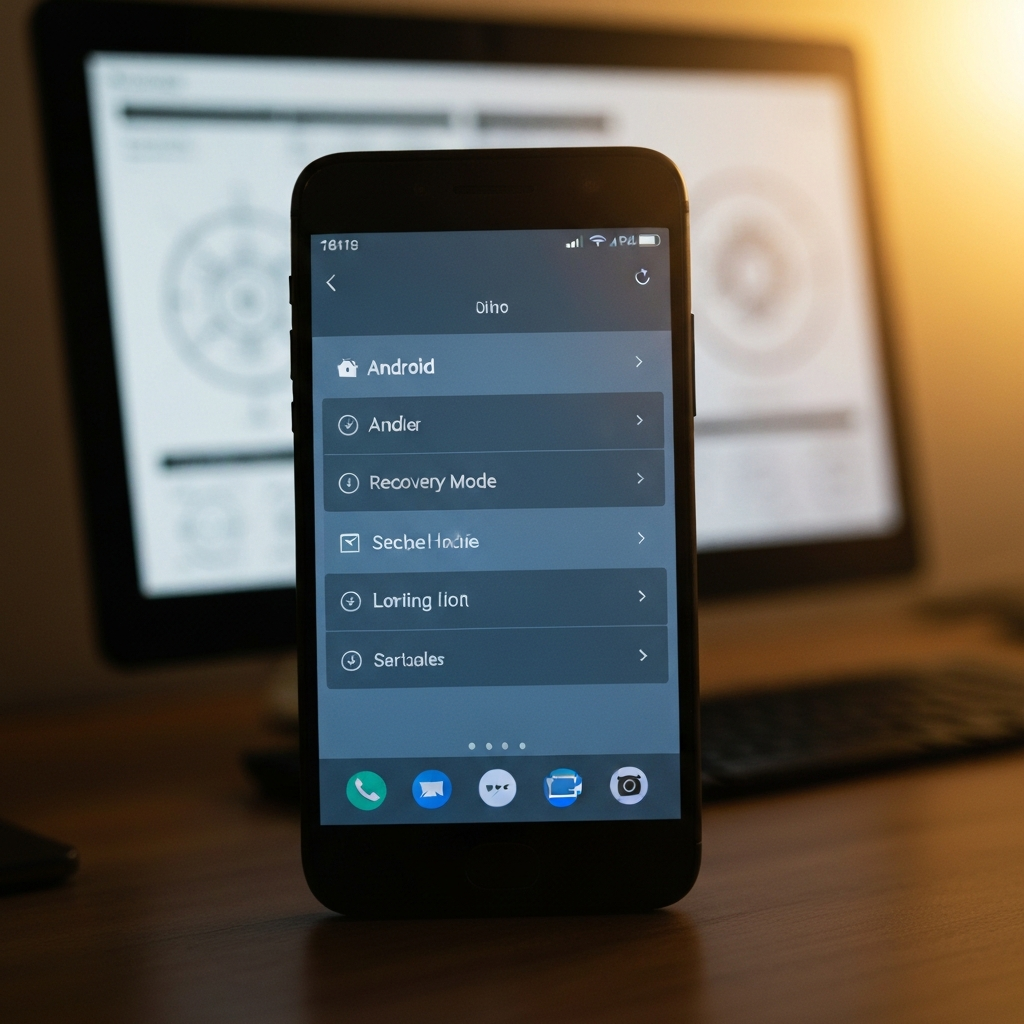
Step 4: Flash Stock Firmware Using a Computer
Flashing stock firmware involves using a computer and specialized software to reinstall the original operating system on your phone. This is a more advanced procedure that can potentially unbrick your phone if the issue is caused by a corrupted operating system. This process will erase all data on your phone. You'll need to download the correct stock firmware for your specific phone model and a compatible flashing tool, such as Odin (for Samsung devices) or SP Flash Tool (for MediaTek devices). Follow the instructions provided with the flashing tool carefully, as incorrect flashing can permanently damage your phone.

Step 5: Use ADB (Android Debug Bridge) Commands
ADB (Android Debug Bridge) is a command-line tool that allows you to communicate with your Android device from a computer. If your phone is partially bricked and still detectable by your computer, you can use ADB commands to try to diagnose the problem, push files, or even attempt to flash firmware. First, you'll need to install the Android SDK Platform Tools on your computer. Enable USB debugging in the developer options of your phone if possible (if it boots even partially), otherwise some ADB commands won't work. Common ADB commands include `adb devices` (to check device connectivity), `adb reboot recovery` (to reboot into recovery mode), and `adb push` (to copy files to the device).

Tools or Materials Required
- Small screwdriver set (for opening the phone, if necessary)
- Compressed air
- New or known-good charging cable
- Computer with internet access
- USB data cable
- Stock firmware for your specific phone model
- Flashing tool (e.g., Odin, SP Flash Tool)
- Android SDK Platform Tools (ADB)
Safety Considerations
Always disconnect the phone from the power source before attempting any disassembly. Be careful when opening the phone to avoid damaging internal components. Work in a well-lit and static-free environment. If you're not comfortable with hardware repairs, seek professional assistance.
Common Mistakes to Avoid
Using the wrong firmware for your phone model can cause irreversible damage. Rushing through the flashing process without carefully reading the instructions. Not backing up your data (if possible) before attempting any recovery methods. Forgetting to install the necessary drivers for your phone to be recognized by your computer.
FAQ Section
Q: How do I know if my phone is truly bricked?
A: A bricked phone typically exhibits symptoms such as not turning on at all, getting stuck on the boot screen, or displaying error messages repeatedly.
Q: Will flashing stock firmware void my warranty?
A: Yes, in many cases, flashing custom firmware or even stock firmware can void your warranty.
Q: How long does it take to unbrick a phone?
A: The time it takes to unbrick a phone can vary depending on the complexity of the issue and the method used. It can range from a few minutes to several hours.
Reviving a bricked phone can be a challenging but rewarding endeavor. By systematically following these steps and exercising caution, you can significantly increase your chances of bringing your device back to life. Remember to research your specific phone model and the appropriate procedures before attempting any advanced techniques. If you're unsure about any step, it's always best to seek professional assistance. Prevention is better than cure, so always keep your phone's software updated and avoid installing unofficial or untrusted apps. Good luck!