In a world of constant upgrades and planned obsolescence, it's easy to feel pressured to replace your gadgets every year. But what if you could extend the life of your trusty old tech? Breathing new life into your old devices is not only environmentally responsible but also a great way to save money. From smartphones to laptops, there are numerous ways to improve performance, functionality, and aesthetics.
This guide provides practical steps and expert tips to help you revitalize your aging technology. We'll cover essential maintenance, strategic upgrades, software optimizations, and creative repurposing techniques. Whether you're looking to speed up a sluggish computer or simply give your phone a fresh new look, you'll find actionable advice here.
Before you rush out to buy the newest model, consider the potential hidden within your current devices. With a little effort and the right approach, you can unlock untapped potential and keep your beloved tech running smoothly for years to come. Let's dive in and explore how to transform your old tech from outdated relics to reliable workhorses.
Step 1: Assess the Current Condition
Identify Problem Areas and Limitations
The first step in revitalizing your old tech is to thoroughly assess its current condition. Start by identifying any specific problems you're experiencing. Is your laptop running slowly? Is your phone's battery life abysmal? Are there any physical defects like a cracked screen or malfunctioning buttons? Create a detailed list of issues to address. Don't forget to check for software issues, outdated operating systems and security vulnerabilities. Understanding the limitations of your device is key to determining the most effective solutions.

Step 2: Perform Essential Cleaning and Maintenance
Clean Inside and Out
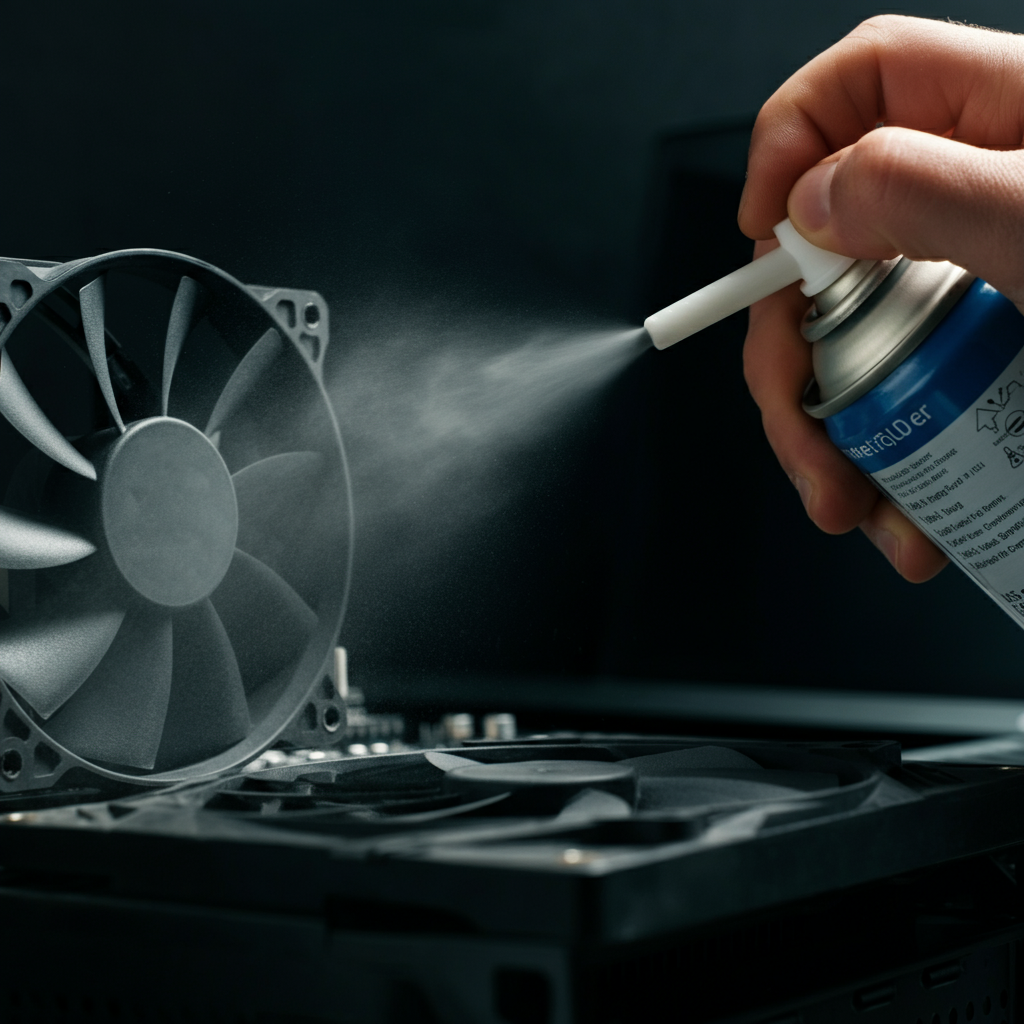
Dust, grime, and debris can significantly impact the performance and lifespan of your tech. Begin by cleaning the exterior surfaces with a soft, lint-free cloth. For electronics with screens, use a specialized screen cleaner. Inside your devices, dust accumulation can cause overheating and reduced efficiency. Carefully disassemble (if you're comfortable and have the tools) and use compressed air to remove dust from fans, vents, and internal components. If disassembling isn't your thing, consider a professional cleaning service. Proper cleaning can dramatically improve performance and prevent future issues.
Step 3: Optimize the Operating System
Declutter and Update Software
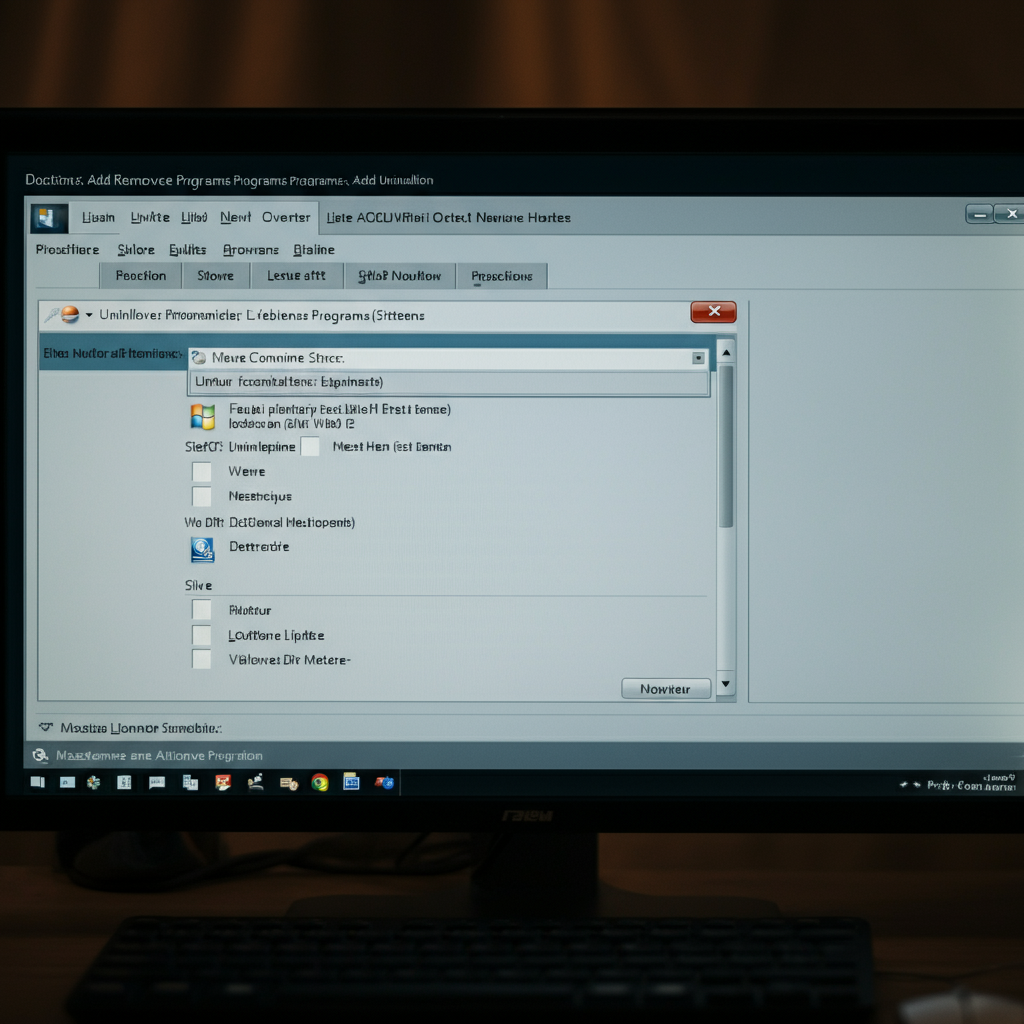
An outdated or bloated operating system can severely impact performance. Start by uninstalling any unused programs and apps. These can consume valuable storage space and processing power. Run a disk cleanup utility to remove temporary files and optimize storage. Update your operating system to the latest version to benefit from performance improvements, bug fixes, and security patches. Consider a clean install of your operating system if performance issues persist. A fresh start can often restore your device to its original speed and responsiveness.
Step 4: Upgrade Key Components (If Possible)
RAM, Storage, and Battery
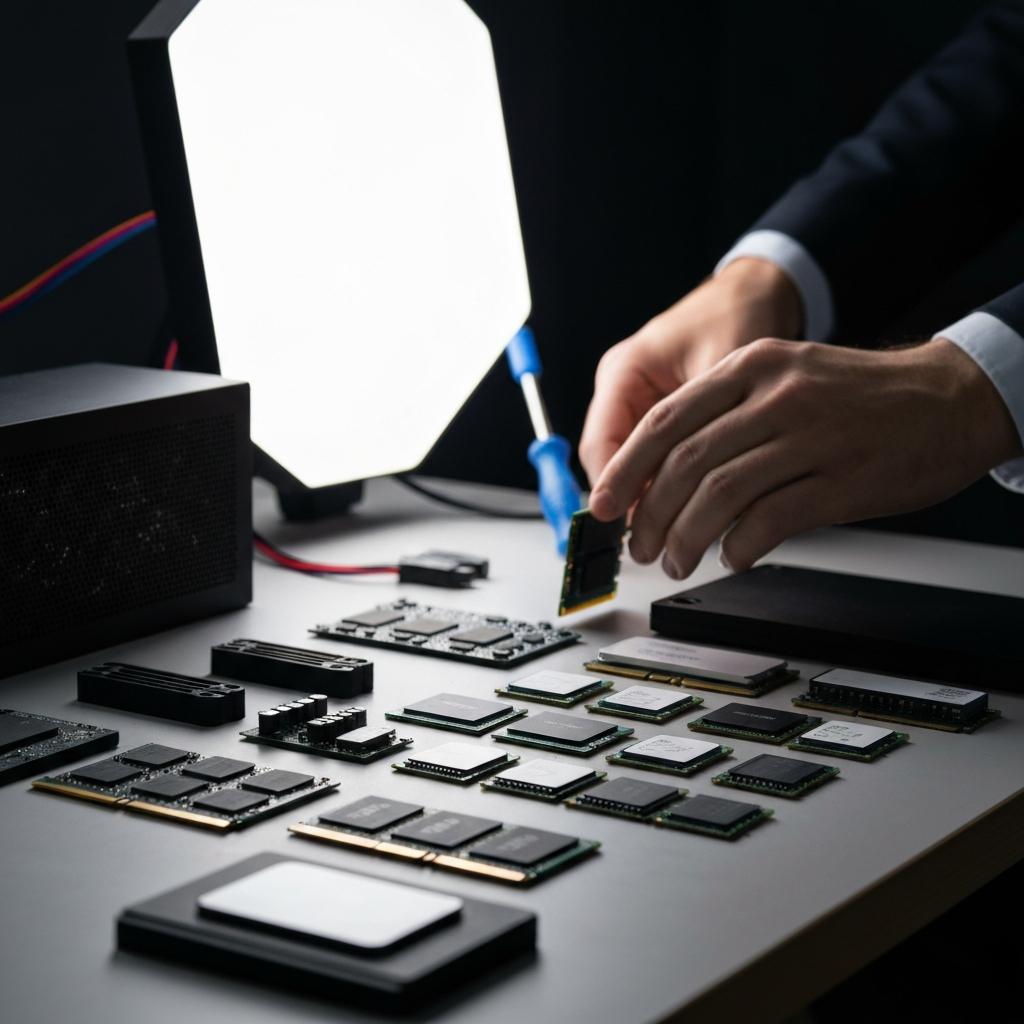
Upgrading certain components can provide a significant performance boost. Adding more RAM (Random Access Memory) can improve multitasking capabilities and reduce slowdowns. Upgrading from a traditional hard drive (HDD) to a solid-state drive (SSD) can dramatically improve boot times and overall responsiveness. If your device allows it, replacing an old, worn-out battery can extend its lifespan and usability. Be sure to check compatibility before purchasing any upgrades and follow proper installation procedures. Upgrading is often the most effective way to inject new speed into old devices.
Step 5: Reassess Software and Apps
Lightweight Alternatives
Some software and apps are notorious for consuming excessive resources. Explore lightweight alternatives that offer similar functionality with less overhead. For example, consider using a minimalist web browser extension instead of a full-fledged program. Switch to lightweight apps for tasks like image editing, note-taking, or document creation. Avoiding resource-intensive software can make a noticeable difference, especially on older hardware. Less overhead equals better performance and a longer lifespan for your tech.

Step 6: Repurpose Old Devices
Turn to New Uses
Even if you can't significantly improve performance, you can still find new uses for your old tech. An old laptop can be transformed into a dedicated media server, a secondary display, or a simple word processor. An old smartphone can become a security camera, a universal remote, or a dedicated e-reader. Get creative and think outside the box. Don't let your old devices gather dust. Give them a new purpose and extend their usefulness.

Tools or Materials Required
- Soft, lint-free cloths
- Screen cleaner
- Compressed air
- Screwdrivers (various sizes)
- Anti-static wrist strap
- RAM modules (compatible with your device)
- SSD drive (compatible with your device)
- Replacement battery (compatible with your device)
Common Mistakes to Avoid
- Forcing components during disassembly/assembly.
- Using excessive force when cleaning delicate parts.
- Installing incompatible hardware or software.
- Ignoring safety precautions (e.g., static electricity).
Safety Considerations
- Always disconnect the device from power before disassembling.
- Use an anti-static wrist strap to prevent damage from static electricity.
- Be careful when handling sharp components.
- Do not attempt repairs you are not comfortable with.
Pro Tips
- Back up your data before making any significant changes.
- Consult online forums and tutorials for specific device models.
- Consider seeking professional help for complex repairs.
FAQ Section
Q: How do I know if my device is worth upgrading?
A: Consider the cost of upgrades versus the cost of a new device. If the upgrades are significantly cheaper and will address your main performance concerns, it may be worth it. If the device is very old or has multiple issues, a new device might be a better investment.
Q: How do I find compatible RAM or SSD upgrades?
A: Use online compatibility checkers provided by memory and storage manufacturers (e.g., Crucial, Kingston). Enter your device's model number to find guaranteed-compatible upgrades.
Q: What do I do with my old parts?
A: Recycle them responsibly at an electronics recycling center. Many retailers also offer recycling programs for old electronics.
Conclusion
Breathing new life into your old tech is a rewarding endeavor. By following these steps, you can extend the lifespan of your devices, save money, and reduce electronic waste. Remember to start with a thorough assessment, perform essential cleaning and maintenance, optimize the operating system, and consider strategic upgrades. Don't be afraid to get creative and find new uses for your old devices. With a little effort and the right approach, you can keep your beloved tech running smoothly for years to come.