Do you have a drawer full of old smartphones, tablets, or laptops gathering dust? Instead of letting them become e-waste, consider breathing new life into them. With a little effort, you can repurpose that outdated technology for new uses, saving money and reducing environmental impact. This guide is designed for beginners, providing simple and effective steps to revive your old tech.
The key to successfully repurposing old tech lies in understanding its limitations and identifying new, less demanding roles. Perhaps that old laptop isn't powerful enough for modern gaming, but it could serve as a dedicated media server or a simple word processor. We'll walk you through cleaning, upgrading, and repurposing your devices, offering practical advice and helpful tips along the way.
Get ready to unlock the hidden potential of your old gadgets. Let's dive in!
Step 1: Assess the Condition of Your Device
Before you start any revival project, take a close look at the device's current condition. Power it on if possible and note any obvious issues like a cracked screen, broken buttons, or a malfunctioning battery. Check for physical damage like dents, scratches, or water damage. Document everything meticulously; this will help you decide if the device is worth the effort and what repairs might be necessary. Also, try to remember the password! Forgetting the login details can significantly complicate the revival process.

Step 2: Clean and Sanitize Thoroughly
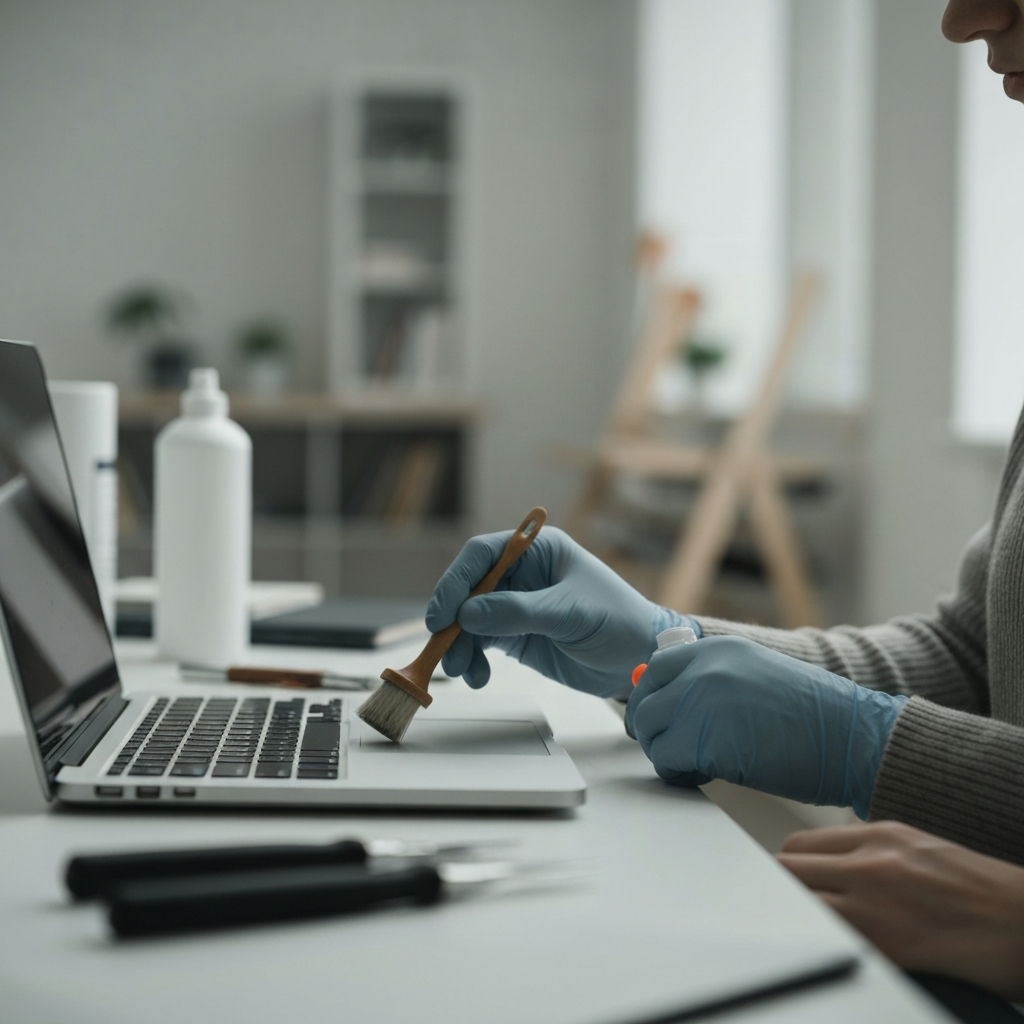
Dust, grime, and even mold can accumulate on electronics over time, potentially causing performance issues and hygiene concerns. Use a microfiber cloth and isopropyl alcohol (70% or higher) to gently clean all surfaces of the device. Avoid spraying liquids directly onto the device; instead, dampen the cloth and wipe. For keyboards and other hard-to-reach areas, use a can of compressed air to blow away dust and debris. Pay special attention to ports and connectors, as these can become clogged with lint and dirt. Don't forget the screen; use a screen cleaner designed for electronics.
Step 3: Evaluate Software and Operating System
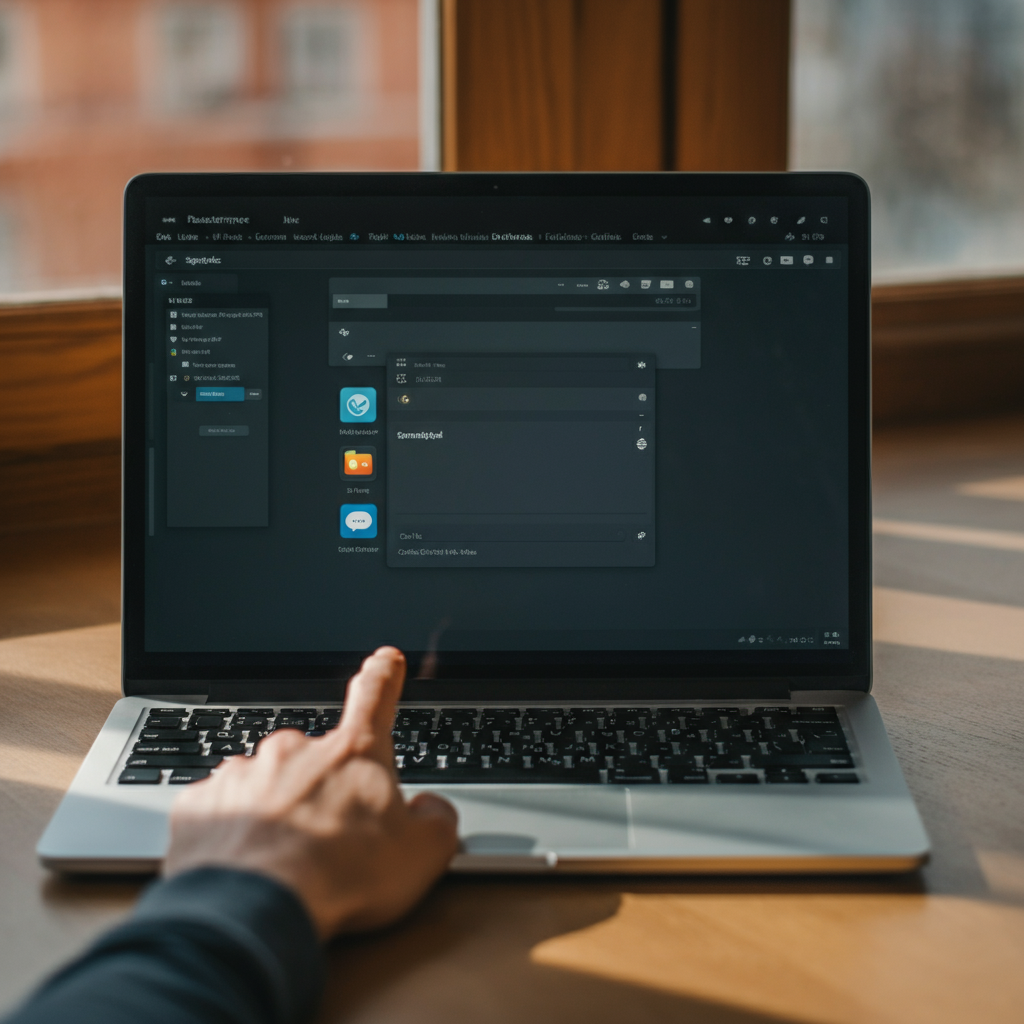
An outdated operating system can significantly impact performance and security. Check the current OS version and see if it can be updated to a newer version. If the manufacturer no longer supports updates, consider installing a lightweight Linux distribution. Linux distros like Ubuntu or Linux Mint are excellent options for older hardware, as they are less resource-intensive than Windows or macOS. Before making any changes, back up any important data to an external drive or cloud storage. A fresh operating system install can drastically improve speed and responsiveness.
Step 4: Upgrade Hardware (If Possible)
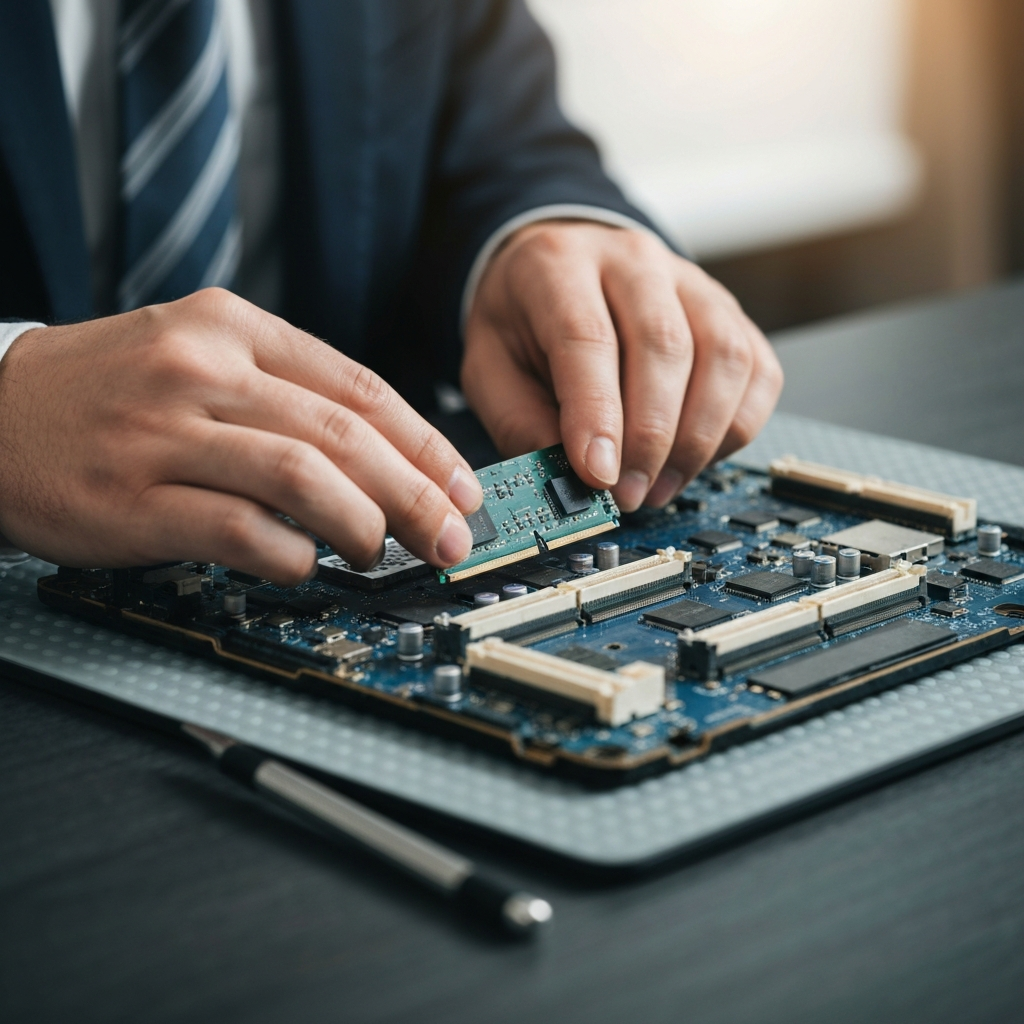
Depending on the device, you may be able to upgrade certain hardware components to improve performance. Adding more RAM (random access memory) is often the most effective upgrade, especially for laptops. Check the device's specifications to determine the maximum amount of RAM it can support before purchasing new modules. Consider replacing a traditional hard drive (HDD) with a solid-state drive (SSD) for significantly faster boot times and application loading. Upgrading the battery can also extend the device's lifespan and usability. Be sure to consult the device’s manual before opening it up.
Step 5: Repurpose Your Device with a New Role
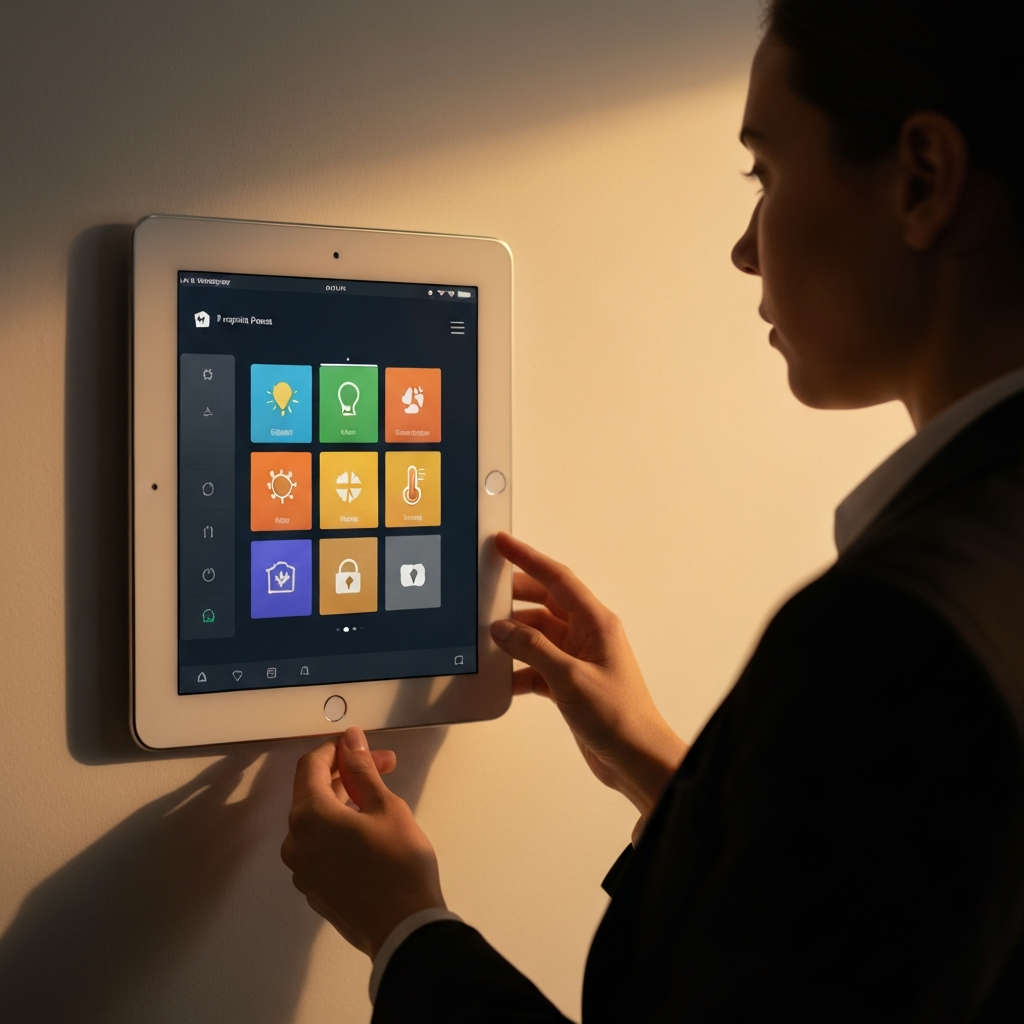
Now comes the fun part: finding a new purpose for your revived tech. An old laptop could become a dedicated media server, streaming movies and music to your smart TV. A tablet could serve as a digital photo frame or a smart home control panel. An old smartphone could be repurposed as a security camera or a dedicated music player for your car. Think creatively about your needs and how your old tech can fulfill them. There are numerous software applications and tutorials available online to help you set up your device for its new role.