Encountering the dreaded "This video file cannot be played (Error Code: 232011)" can be incredibly frustrating, especially when you're eager to watch your favorite content. This error typically indicates a problem with your web browser's settings, cached data, or compatibility with the video file itself. Fortunately, this isn't a permanent issue, and with a systematic approach, you can usually resolve it quickly.
This comprehensive guide provides step-by-step instructions to diagnose and fix error 232011. We'll explore common causes, offer practical solutions, and highlight potential pitfalls to avoid. By following these steps, you'll be back to streaming videos without interruption in no time. We'll cover everything from clearing your browser's cache to adjusting hardware acceleration settings.
Remember, it's essential to proceed methodically. Start with the simplest solutions first and progressively move towards more advanced troubleshooting steps. This will help you identify the root cause of the error more efficiently.
Step 1: Clear Browser Cache and Cookies
Corrupted or outdated cached files and cookies can often interfere with video playback and trigger error 232011. Clearing your browser's cache and cookies forces it to download fresh versions of website data, eliminating potential conflicts. This is often the first and most effective solution. To clear your cache and cookies, navigate to your browser's settings menu (usually found under "History" or "Privacy"). Look for options like "Clear browsing data," "Clear cache," or "Delete cookies." Ensure you select both "Cookies and other site data" and "Cached images and files" before clearing.

Step 2: Try Incognito Mode
Browser extensions and plugins can sometimes interfere with video playback, especially if they're outdated or incompatible with the video format. Incognito mode (also known as private browsing) disables all extensions and doesn't use cached files, providing a clean environment for testing. If the video plays correctly in Incognito mode, it suggests that an extension is causing the problem. To open Incognito mode, use the keyboard shortcut Ctrl + Shift + N (Windows) or Cmd + Shift + N (Mac), or find the "New Incognito Window" option in your browser's menu.

Step 3: Disable Hardware Acceleration
Hardware acceleration utilizes your computer's graphics card to render web content, which can improve performance. However, in some cases, it can also cause playback errors if there are compatibility issues with your graphics card or drivers. Disabling hardware acceleration forces the browser to rely on the CPU for rendering, potentially resolving the error. The location of the hardware acceleration setting varies depending on the browser, but it's typically found in the "Settings" or "Advanced settings" menu, often under "System" or "Performance." Look for an option like "Use hardware acceleration when available" and toggle it off.

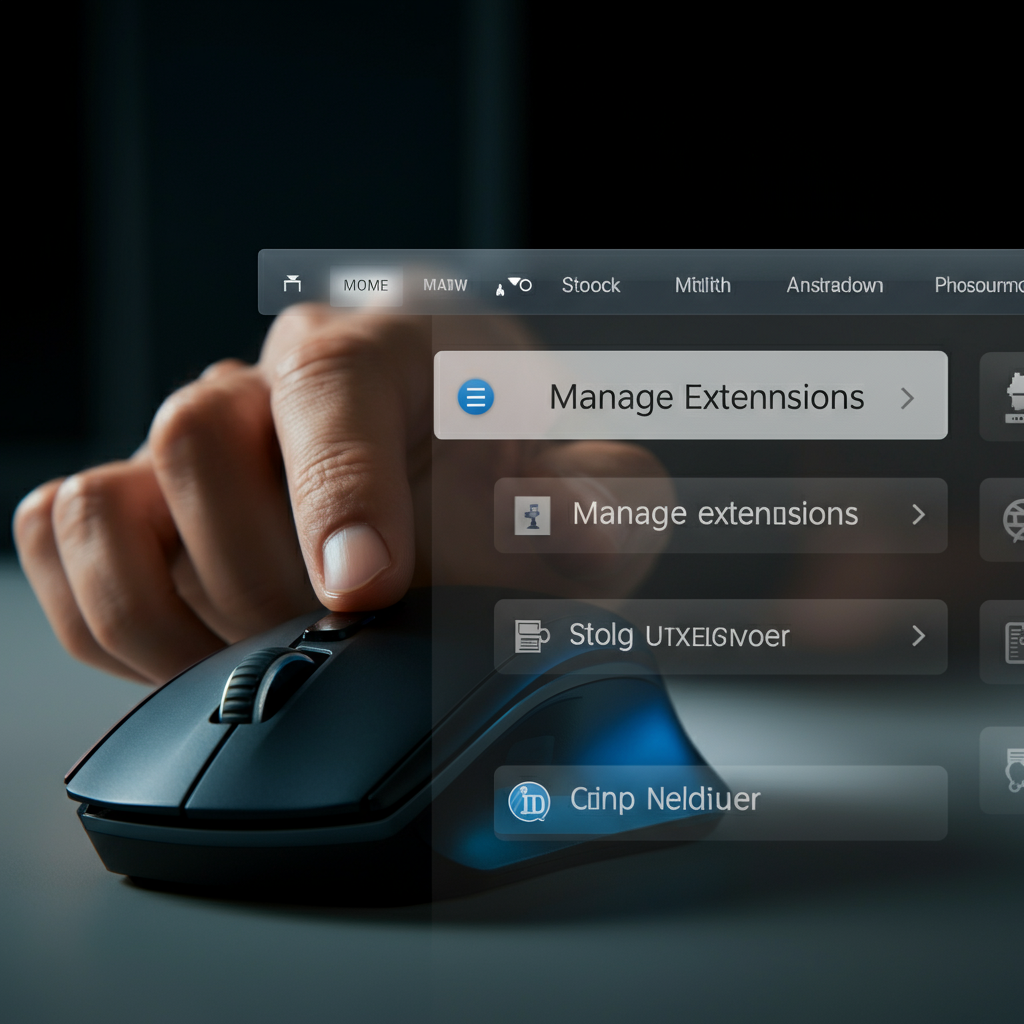
Step 4: Turn Off Browser Extensions
If Incognito mode resolves the issue, but you prefer to use your extensions regularly, you can selectively disable them to identify the culprit. Most browsers have an extensions management page where you can view and disable installed extensions. Disable extensions one at a time, restarting the browser and testing video playback after each disablement, to pinpoint the problematic extension. Once you've identified the extension, you can either remove it or look for an updated version.
Step 5: Reset Your Browser Settings
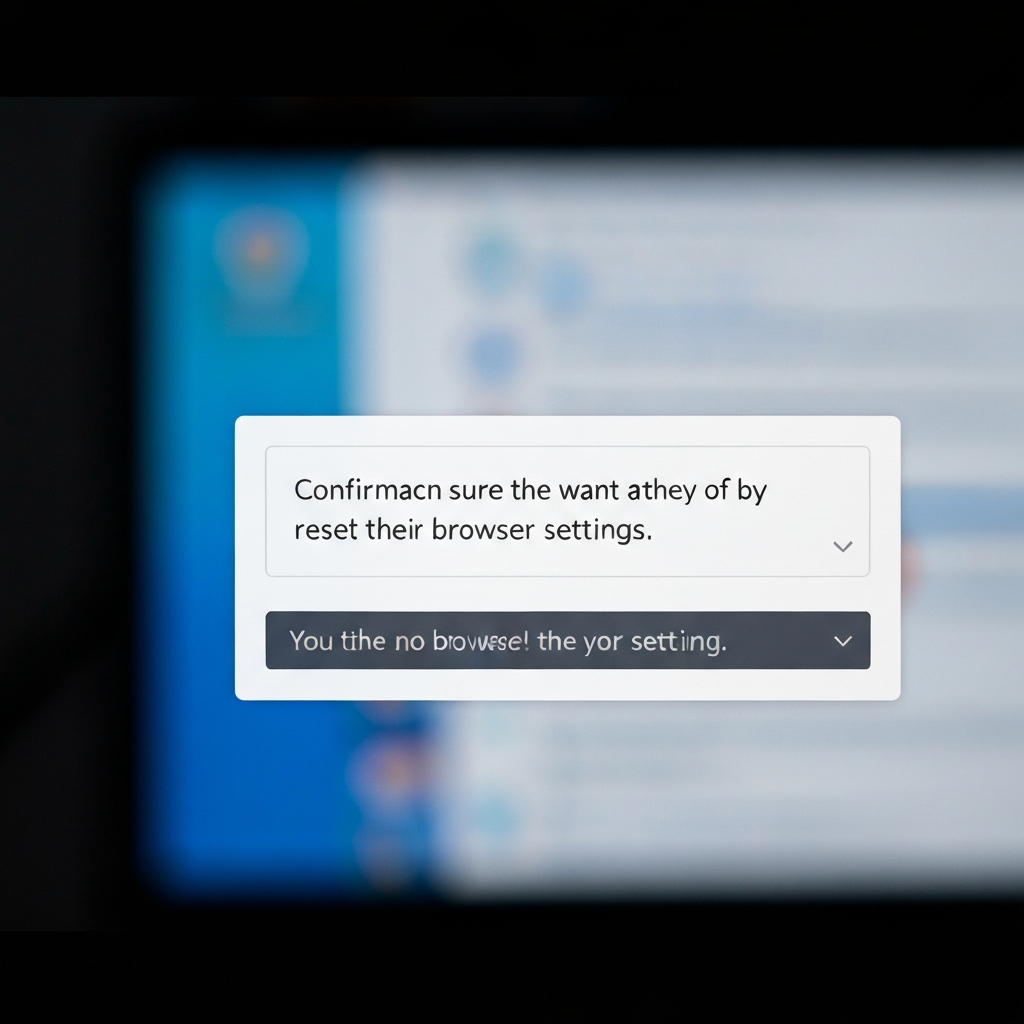
If the error persists after trying the previous steps, resetting your browser settings to their defaults can help eliminate any custom configurations that might be causing the problem. Be aware that resetting your browser will remove your saved passwords, bookmarks, and other personalized settings, so back up any important data before proceeding. The "Reset settings" option is usually found in the "Settings" or "Advanced settings" menu.
Step 6: Update Your Browser
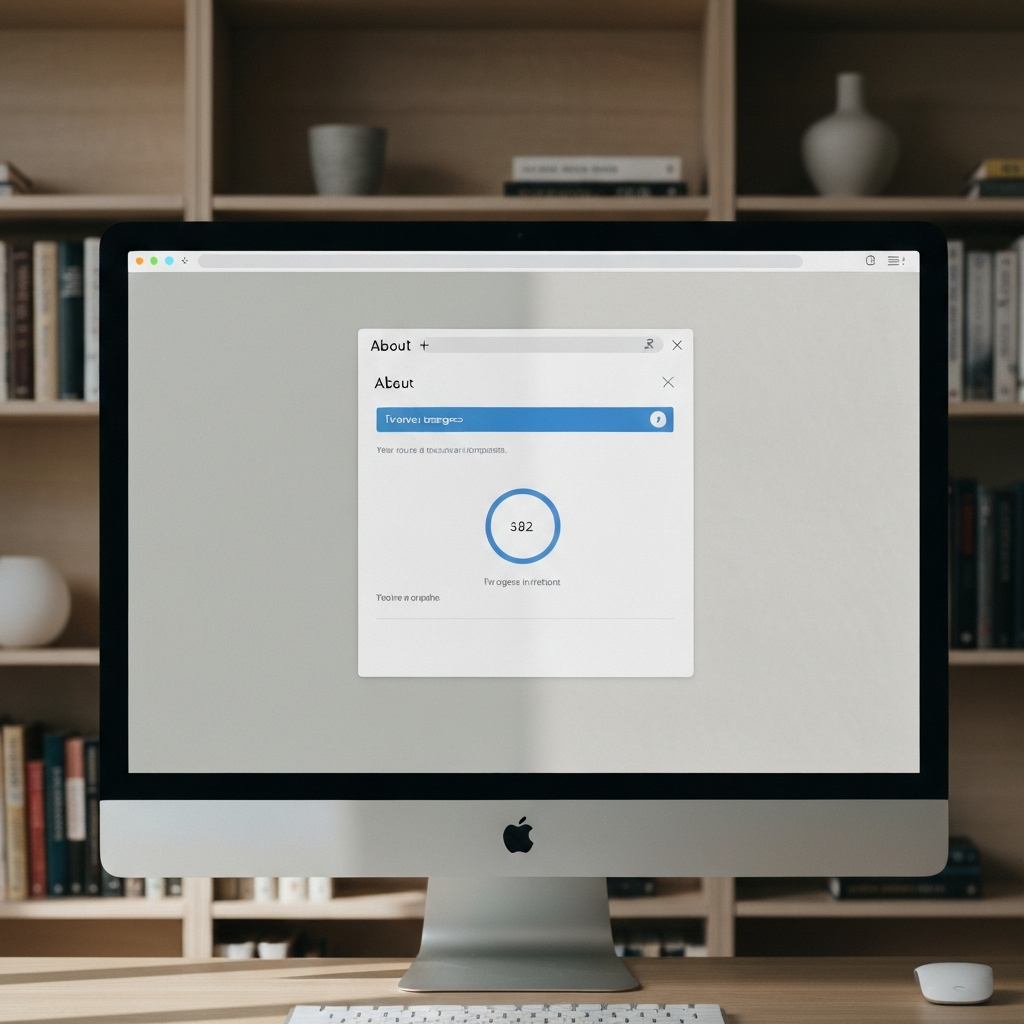
Using an outdated browser can lead to compatibility issues and various errors, including 232011. Most web browsers automatically update in the background, but it's always a good idea to check for updates manually. Look for an "About" section in your browser's menu (often under "Help" or "Settings") and check for an "Update" button. If an update is available, install it and restart your browser.
Step 7: Turn Off Your Proxy Server (If Applicable)
If you're using a proxy server, it might be interfering with your internet connection and causing video playback errors. Try disabling your proxy server in your computer's system settings. The exact steps for disabling a proxy server vary depending on your operating system, but you can usually find the settings under "Network" or "Internet Options."
Step 8: Use a Different Browser
In rare cases, the error might be specific to a particular browser. Try watching the video in a different browser (e.g., if you're using Chrome, try Firefox or Edge). If the video plays correctly in another browser, it suggests that there might be an issue with your primary browser that requires further investigation or a complete reinstall.
Common Mistakes to Avoid
- Skipping steps: It's tempting to jump to the most advanced solutions, but it's important to follow the steps in order to effectively diagnose the problem.
- Not backing up data before resetting browser settings.
- Ignoring error messages: Error messages often provide valuable clues about the cause of the problem.
FAQ Section
Q: Why am I getting error 232011 on YouTube?
A: This error on YouTube is often related to browser cache, extensions, or hardware acceleration. Try the steps outlined above to resolve it.
Q: Will clearing my cache delete my passwords?
A: It depends on your browser settings. Some browsers offer the option to exclude passwords from the cache clearing process. However, resetting your browser WILL remove your saved passwords.
Q: How often should I clear my browser cache?
A: It's a good practice to clear your cache periodically, especially if you're experiencing performance issues or errors. Clearing it every few weeks or months is generally sufficient.
Conclusion
Error 232011 can be a frustrating obstacle to enjoying online videos, but it's typically a solvable problem. By systematically following the troubleshooting steps outlined in this guide, you can identify the root cause of the error and restore your video streaming experience. Remember to start with the simplest solutions and work your way towards more advanced techniques. Consistent maintenance, such as regular browser updates and cache clearing, can also help prevent this error from recurring.