External devices, from Wi-Fi routers and Bluetooth speakers to cellular modems, are vital for modern connectivity. A stable and strong signal is the foundation for optimal performance, ensuring smooth streaming, clear audio, and reliable data transfer. But how can you tell if your device is receiving the signal it needs to function at its best?
This guide provides a comprehensive walkthrough on assessing the signal strength of your external devices. We'll cover everything from basic visual checks to utilizing diagnostic tools and troubleshooting common issues. Understanding these methods will empower you to diagnose connectivity problems and optimize your device placement for the best possible performance.
Ultimately, ensuring your devices have a strong signal is about maximizing your connectivity experience and minimizing frustrating interruptions. Let's dive in and learn how to assess and improve your signal strength.
Step 1: Assess the Device's Physical Location
The physical location of your external device significantly impacts its signal reception. Placement is paramount; a device tucked away in a corner or surrounded by obstructions will likely experience a weaker signal. Ideally, position your device in an open area, away from thick walls, metal objects (like filing cabinets or large appliances), and other electronic devices that can cause interference. Consider the construction materials of your walls; concrete and metal are notorious for blocking signals.

Step 2: Check Signal Strength Indicators
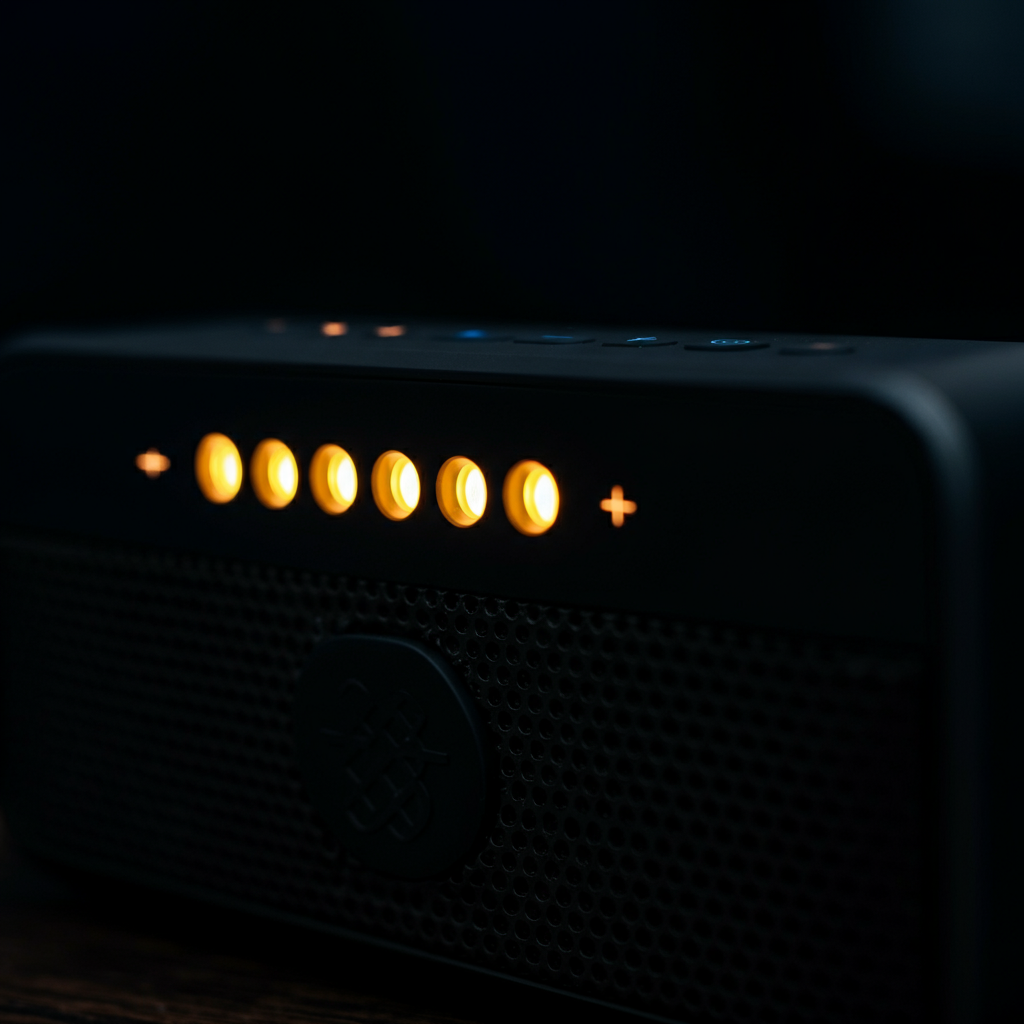
Many external devices are equipped with built-in signal strength indicators, offering a quick visual assessment of the signal quality. These indicators typically manifest as LED lights, bars, or icons on the device itself. A strong signal is usually represented by a higher number of illuminated bars or brighter LEDs. Conversely, a weak signal will display fewer bars or dimmer lights. Refer to your device's user manual to understand the specific meaning of the indicators. The location of the LEDs can vary substantially depending on device design, so don't just assume where to look.
Step 3: Run Built-in Diagnostic Tools
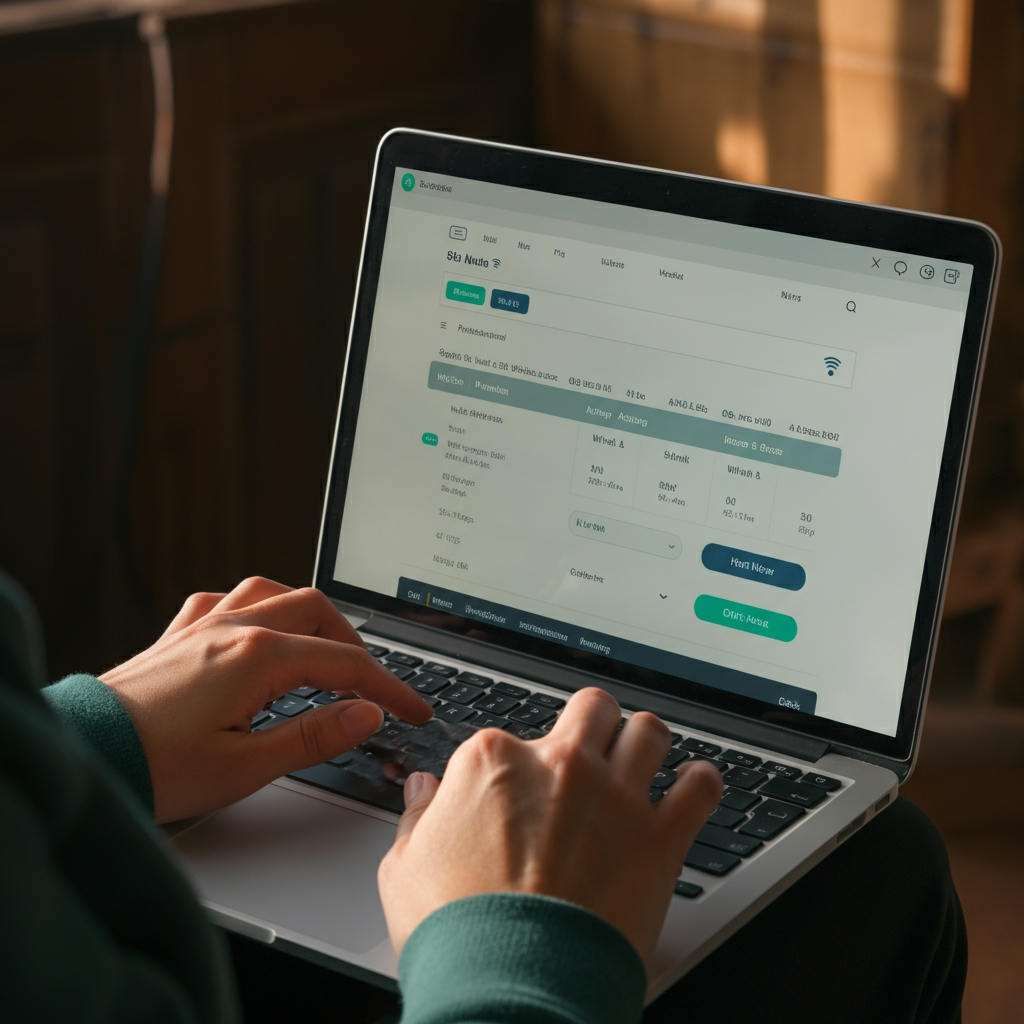
Some external devices, especially Wi-Fi routers and cellular modems, feature integrated diagnostic tools that provide detailed information about signal strength and network performance. Access these tools through the device's settings menu or web interface. Typically, you'll need to enter the device's IP address into a web browser and log in with the administrator credentials. Once logged in, navigate to sections labeled "Signal Strength," "Network Status," or "Diagnostics." These tools often display signal strength in dBm (decibel-milliwatts), a negative value where numbers closer to zero indicate a stronger signal. A signal strength of -60 dBm is generally considered good, while -90 dBm is weak. Be cautious when making changes within the settings menu, and always back up your configuration before making any substantial alterations.
Step 4: Use Signal Testing Applications
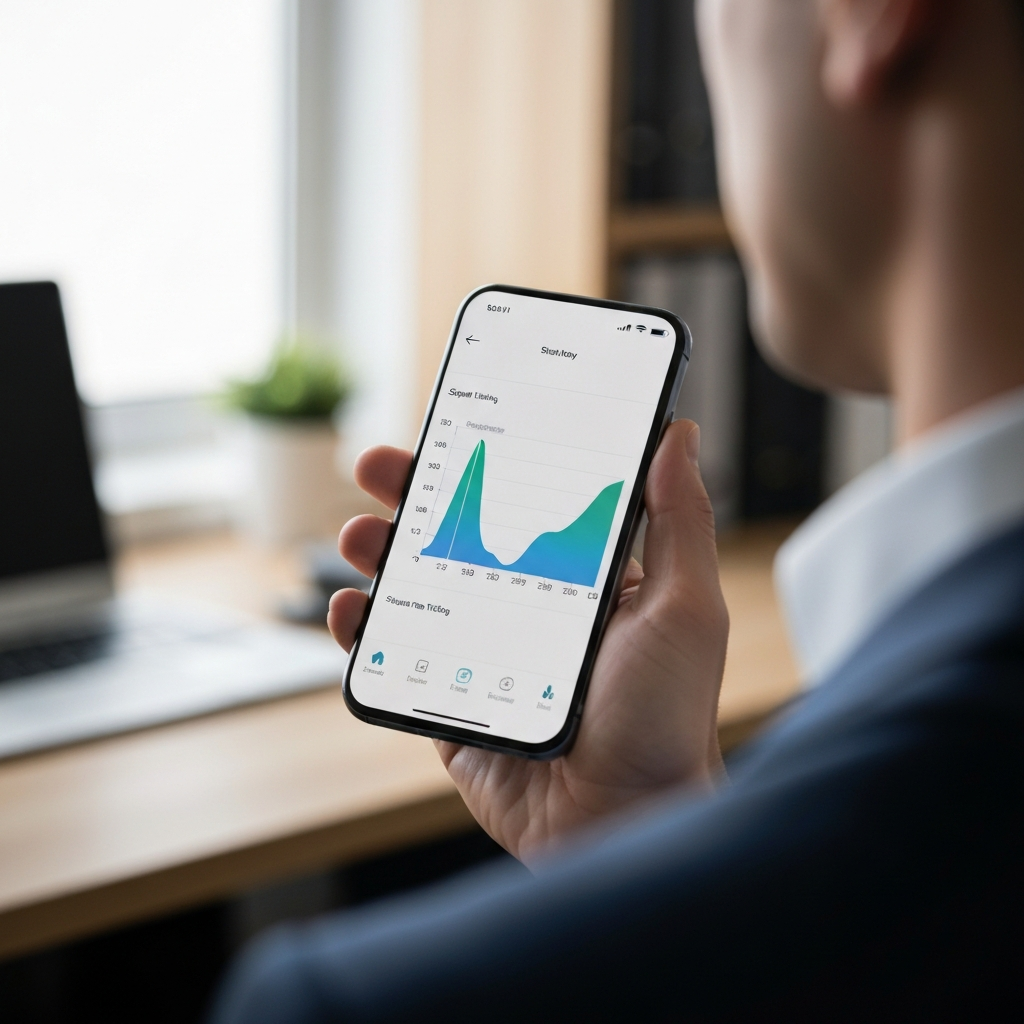
For a more comprehensive and detailed analysis of signal strength, consider utilizing dedicated signal testing applications available for smartphones and computers. These apps provide real-time measurements of signal strength, signal quality, and network performance, offering valuable insights into the performance of your external devices. Search for reputable signal testing apps in your device's app store (e.g., NetSpot, WiFi Analyzer) or download them from trusted sources online. When downloading apps, always verify the developer's reputation and read user reviews to avoid malicious software. Pay close attention to the permissions the app requests before installation.
Step 5: Troubleshoot Connectivity Issues
If you identify connectivity issues or a weak signal through the methods described above, it's time to troubleshoot. Start by adjusting the device's placement, ensuring it's in an open area and free from obstructions. Next, check for firmware or driver updates for the device; outdated software can sometimes cause connectivity problems. If the issue persists, try resetting the device to its factory settings, which can often resolve software glitches. Before performing a factory reset, back up any custom configurations or settings you want to preserve. For persistent issues, consider upgrading to a higher-gain antenna or using signal boosters or repeaters to extend the signal range.

Step 6: Monitor Signal Strength Over Time
Maintaining a consistent and reliable signal requires ongoing monitoring. Periodically run signal strength tests and check the signal strength indicators on your devices to identify any changes or deterioration in signal quality. This proactive approach allows you to detect potential problems early on and address them before they significantly impact performance. Keep a log of your findings, noting any patterns or correlations between signal strength and other factors, such as time of day or activity on the network. Consistent monitoring can help you pinpoint the root cause of signal fluctuations and implement long-term solutions. Set a recurring reminder to check your signal strength monthly to prevent issues from creeping up unnoticed.
Common Mistakes to Avoid
- Ignoring physical obstructions: Failing to account for walls, metal objects, and other electronic devices that can interfere with the signal.
- Overlooking software updates: Neglecting to update firmware or drivers, which can improve signal strength and stability.
- Ignoring device settings: Not properly configuring the device's settings, such as channel selection on a Wi-Fi router.
- Assuming signal strength is constant: Failing to monitor signal strength over time, which can reveal fluctuations and potential issues.
FAQ Section
- What is dBm, and what is a good value?
- dBm stands for decibel-milliwatts, a unit used to measure signal strength. A signal strength of -60 dBm or higher is generally considered good.
- Can too many devices connected to my Wi-Fi affect signal strength?
- Yes, connecting too many devices can strain your Wi-Fi router and reduce signal strength for individual devices. Consider upgrading to a more powerful router or using a mesh network to improve performance.
- How often should I check my signal strength?
- Ideally, you should check your signal strength monthly to identify any changes or potential issues early on.
Conclusion
Checking the signal strength of your external devices is a crucial step in maintaining optimal connectivity and performance. By following the steps outlined in this guide, you can accurately assess signal strength, troubleshoot connectivity issues, and ensure that your devices are functioning at their best. Remember to consider physical placement, utilize diagnostic tools, and monitor signal strength over time to proactively address any potential problems. With a little effort, you can enjoy a seamless and reliable connectivity experience.